Unofficial (WhatsApp)
The Unofficial Connection links your WaaPY account to WhatsApp using a third-party API via DashDeer. This allows you to use a standard WhatsApp or WhatsApp Business number without going through the official Meta verification process.
Setup Guide
Follow these steps to configure your Unofficial WhatsApp connection using DashDeer:
Step 1: Open Waapy
Go to Connection → Add Connection.
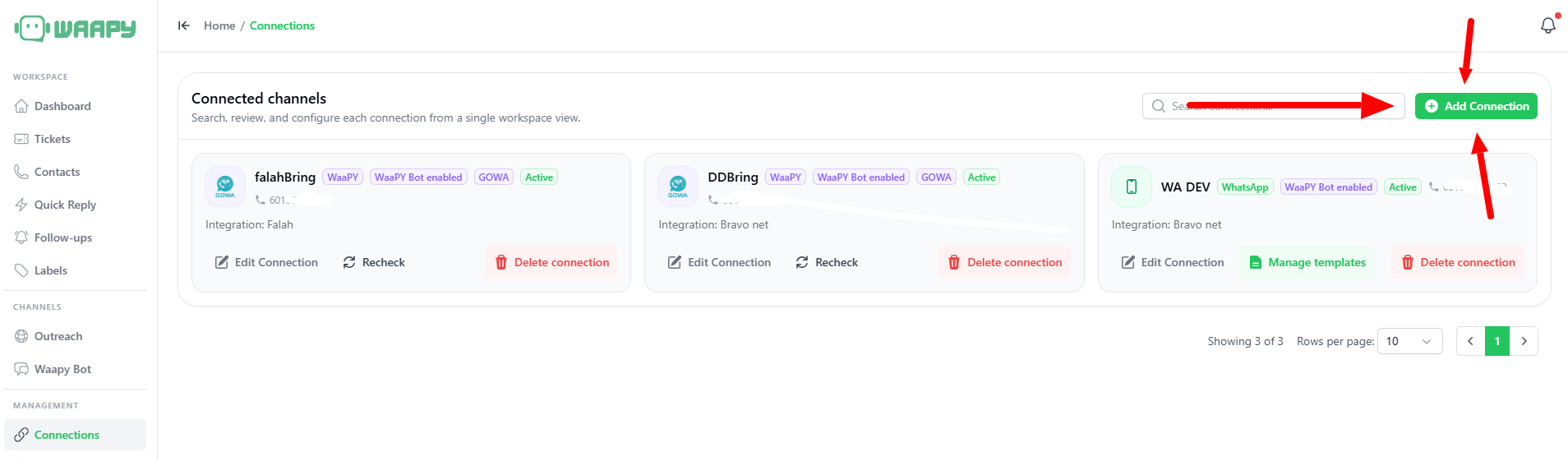
Select Waapy / GOWA.
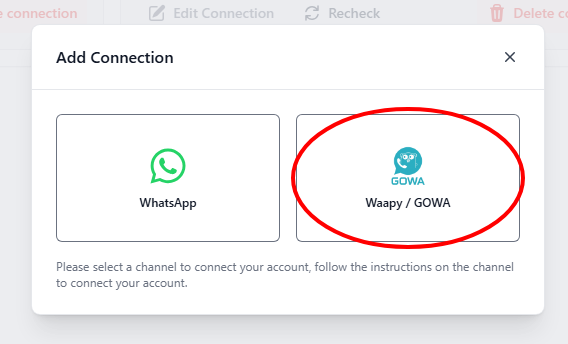
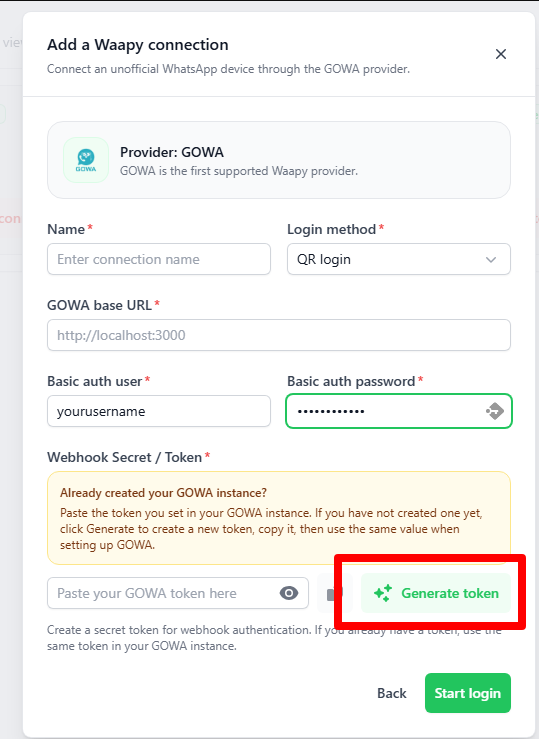
Step 2: Generate Token
- Fill in the Connection Name.
- Set Login method to QR Login.
- Leave GOWA Base URL empty for now.
- For basic auth user, these are the credentials for GOWA. You can enter your email/username and password. Keep this somewhere safe.
- Click the Generate Token button.
- Copy the generated token somewhere safe. You will need this later.
- Leave the page as it is — DO NOT click Start Login yet.
Step 3: Open Dashdeer
-
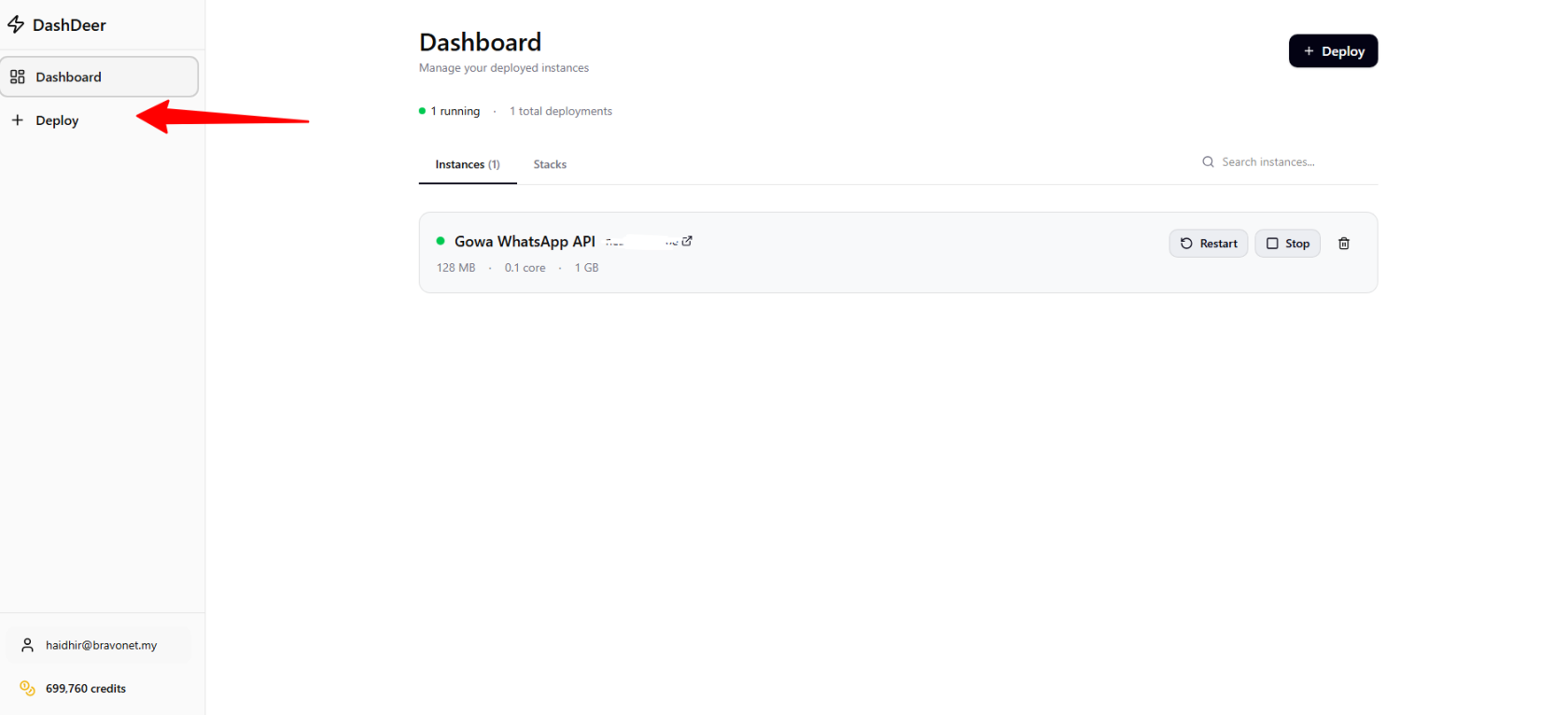
Login to DashDeer.
noteIf you haven't registered DashDeer, please register and let us know the email you registered with.
-
Click Deploy.
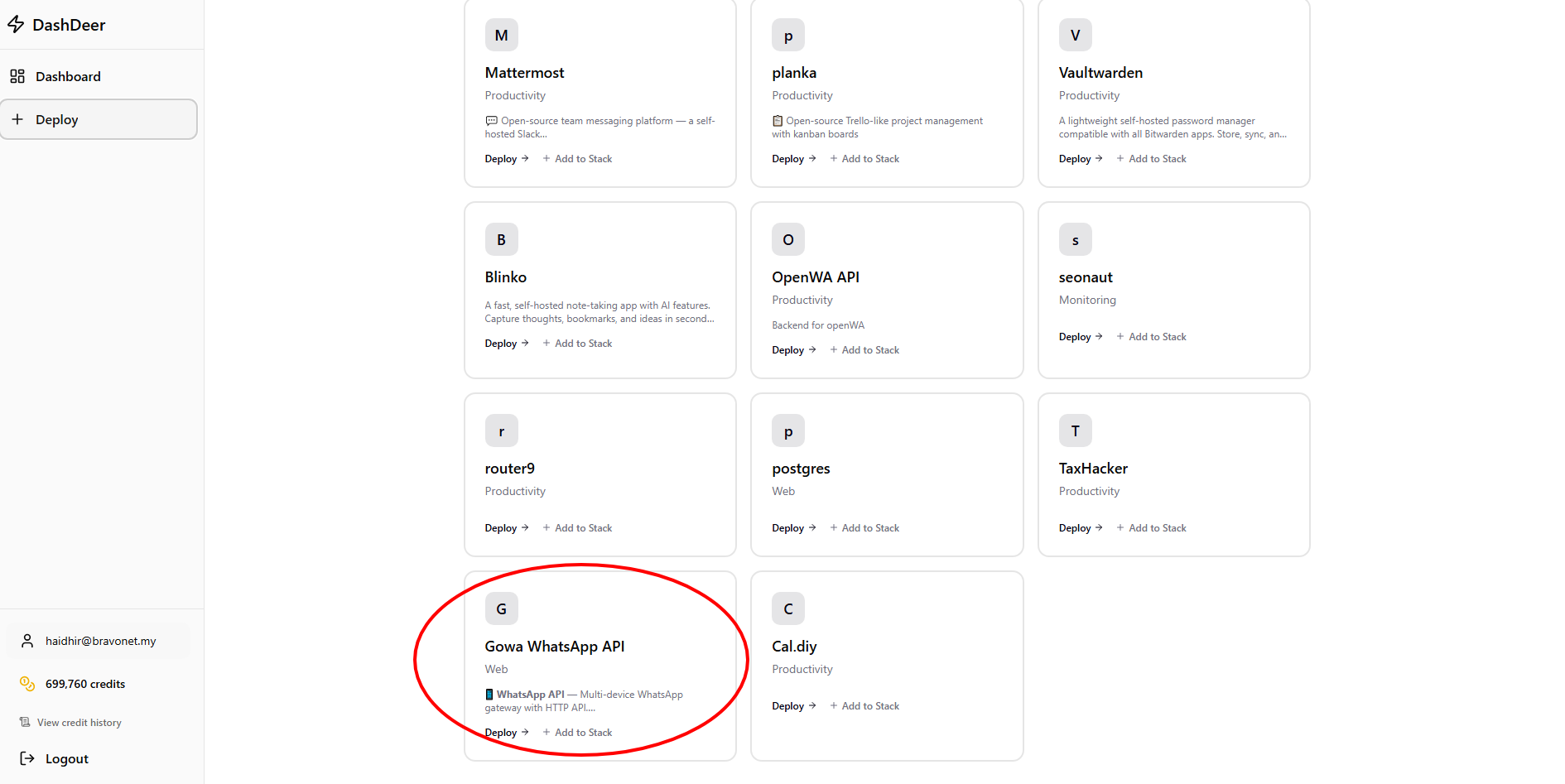
- Scroll down until you see GOWA Whatsapp API and click it.
- A configuration menu will pop up.
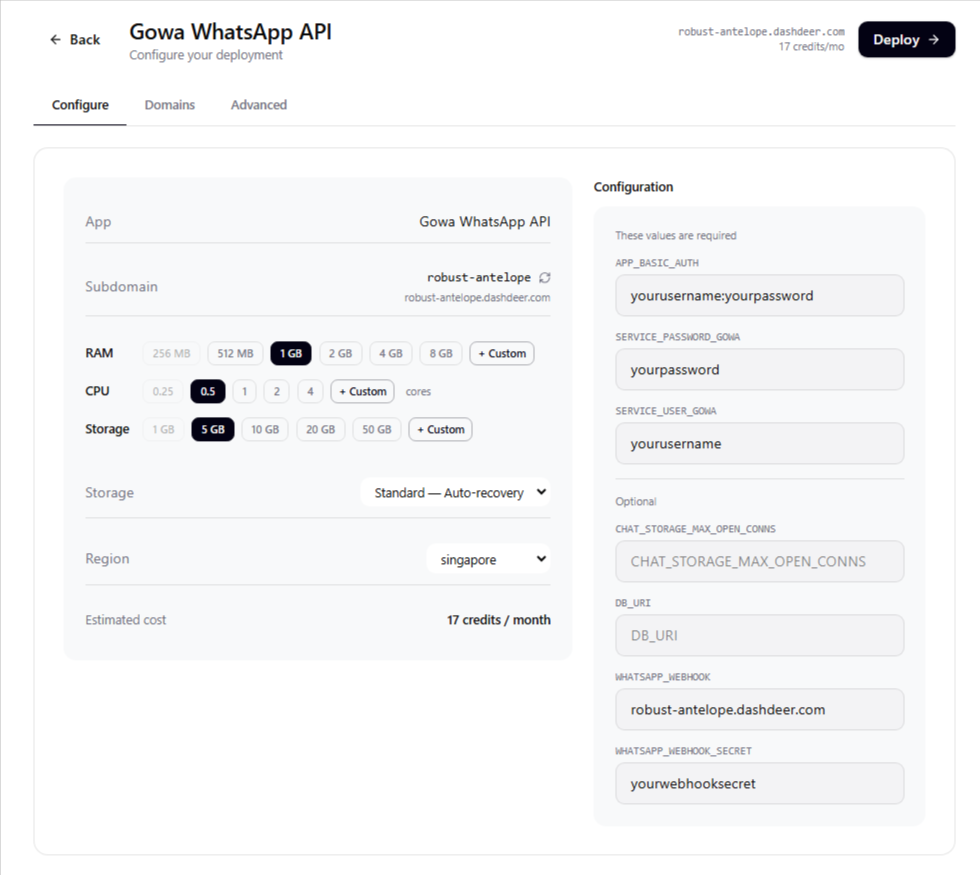
- Set the specifications (RAM, CPU, and Storage) as shown below:
- RAM:
512 MB - CPU:
1 - Storage:
5-10GB - Region: Based on your closest location
- RAM:
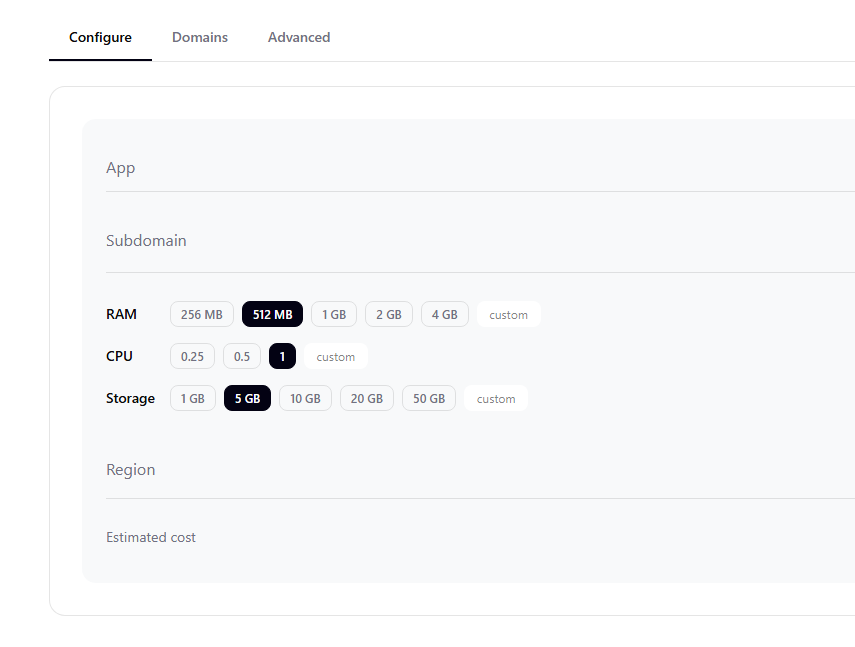
This specification supports up to 5 connections/sessions. If you need more, you can adjust the RAM and CPU usage.
Step 4: Fill Environment Variables
1. APP_BASIC_AUTH
Create your own username and password. Follow the exact format (you need a : in between your username and password).
- Example:
yourusername:yourpassword
2. SERVICE_USER_GOWA
Use the same username.
- Example:
yourusername
3. SERVICE_PASSWORD_GOWA
Use the same password.
- Example:
yourpassword
4. WHATSAPP_WEBHOOK
Take the subdomain provided in DashDeer first. Do not leave this empty for now (we will edit this later).
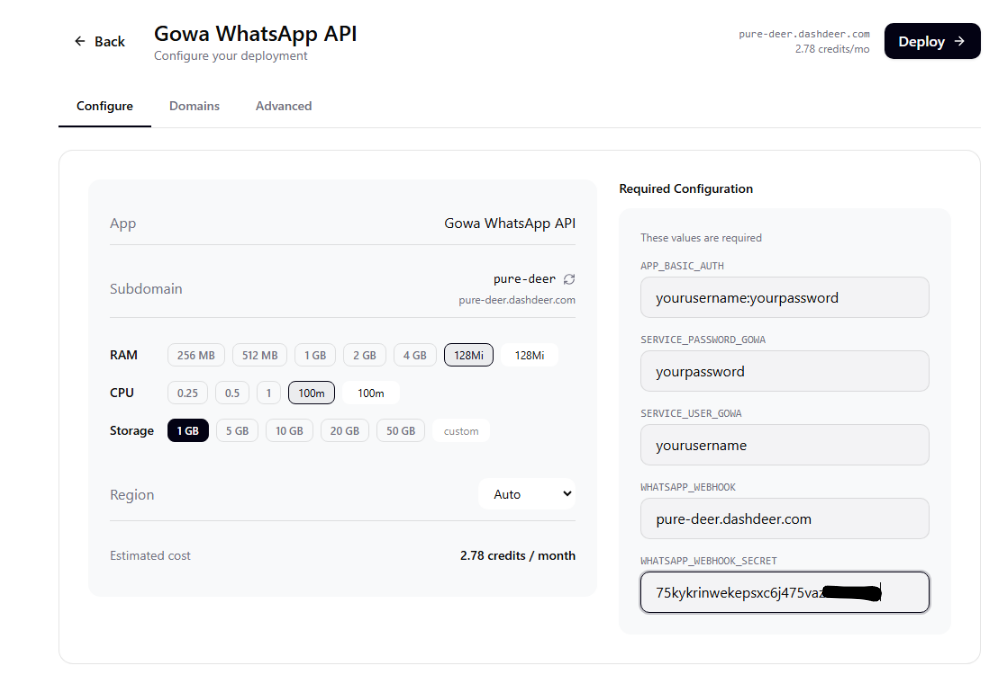
5. WHATSAPP_WEBHOOK_SECRET
Paste the token you generated from Waapy in Step 2.
- Example:
75kykrinwekepsxc6j475vazasosdsdw
Leave Chat Storage and DB URL empty.
Step 5: Deploy
- Click the Deploy button.
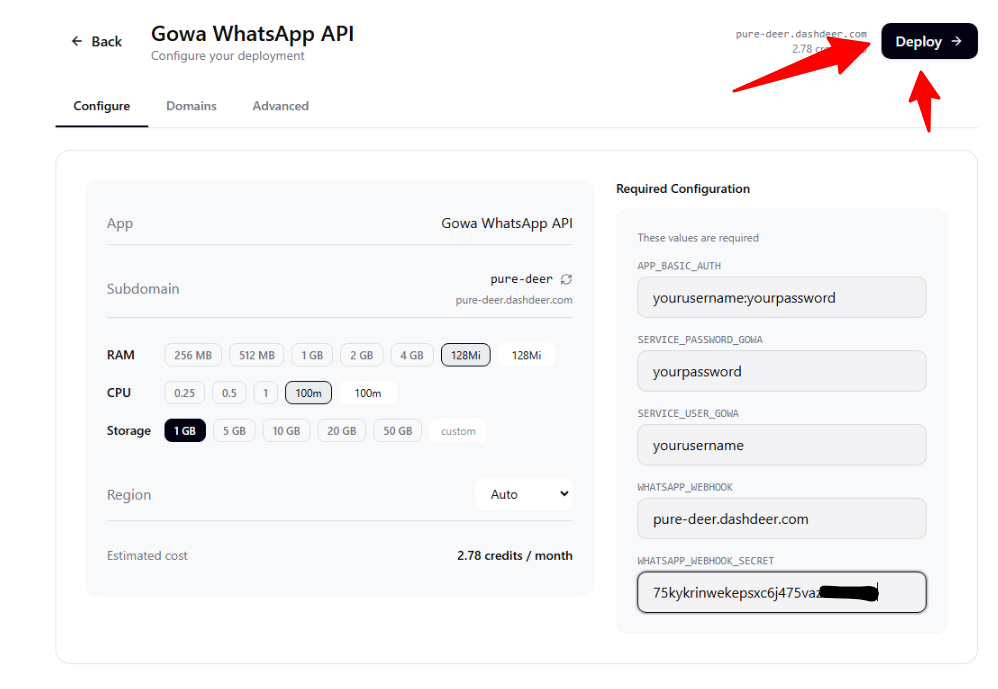
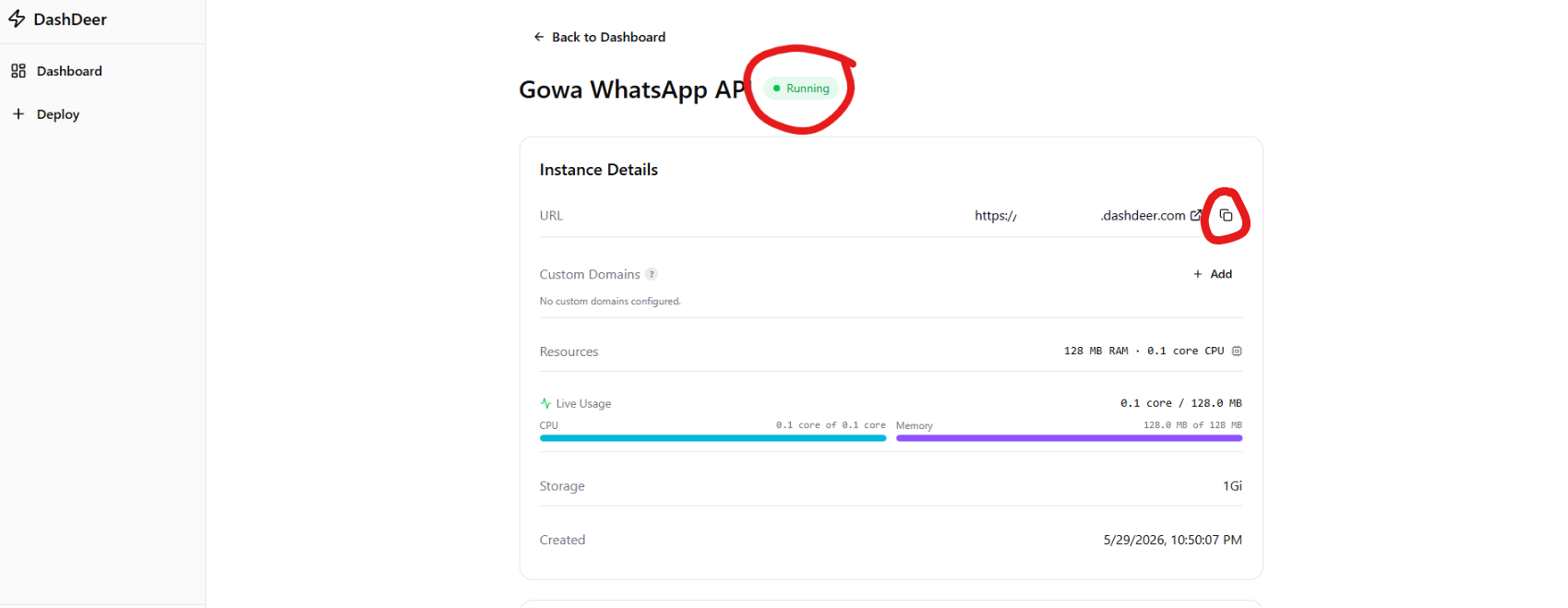
- Wait until the deployment is running. Hit refresh after about 30 seconds if it still doesn't say "Running".
- Copy the URL by clicking the small copy button.
- Keep this DashDeer page open.
Step 6: Return to Waapy
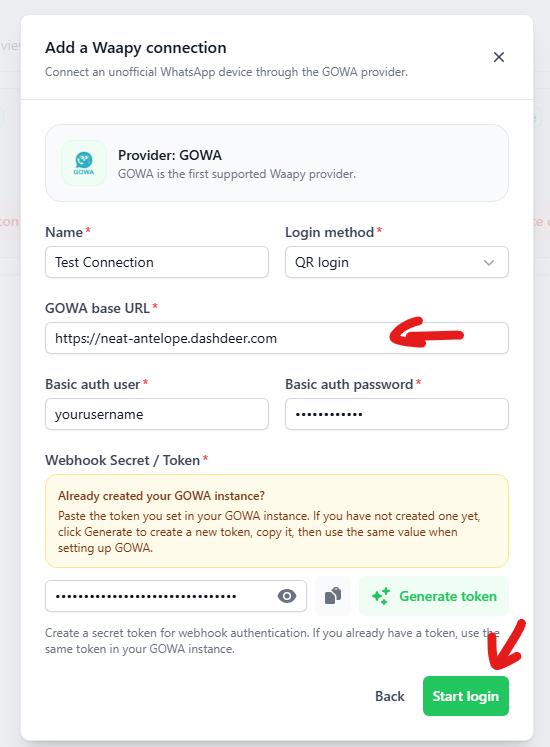
- Paste the URL you just deployed into the GOWA Base URL field.
- After that, click Start Login.
Step 7: QR Login
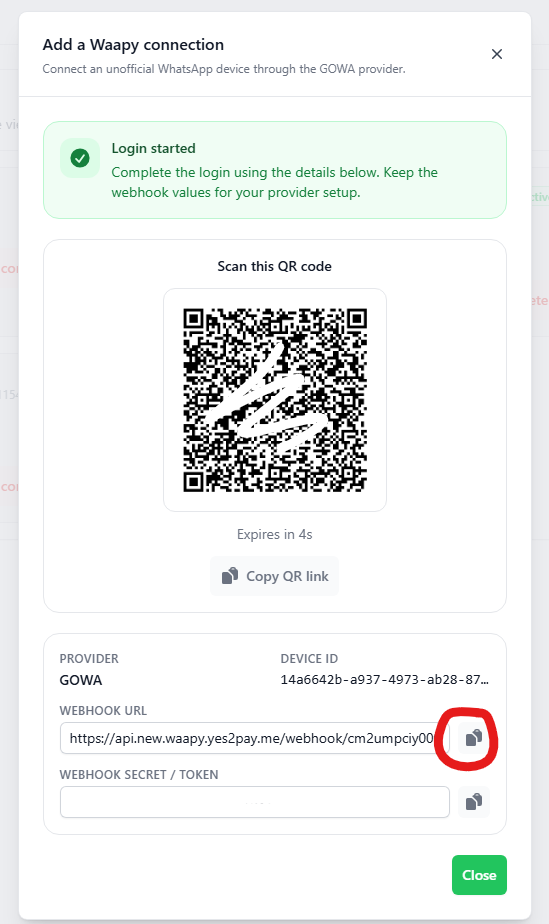
- A QR code should pop up for you to scan with your WhatsApp app. Scan it.
- Copy the WEBHOOK URL shown on the screen.
- Keep this copied, and switch back to your DashDeer tab (from Step 5).
Step 8: Go back to DashDeer
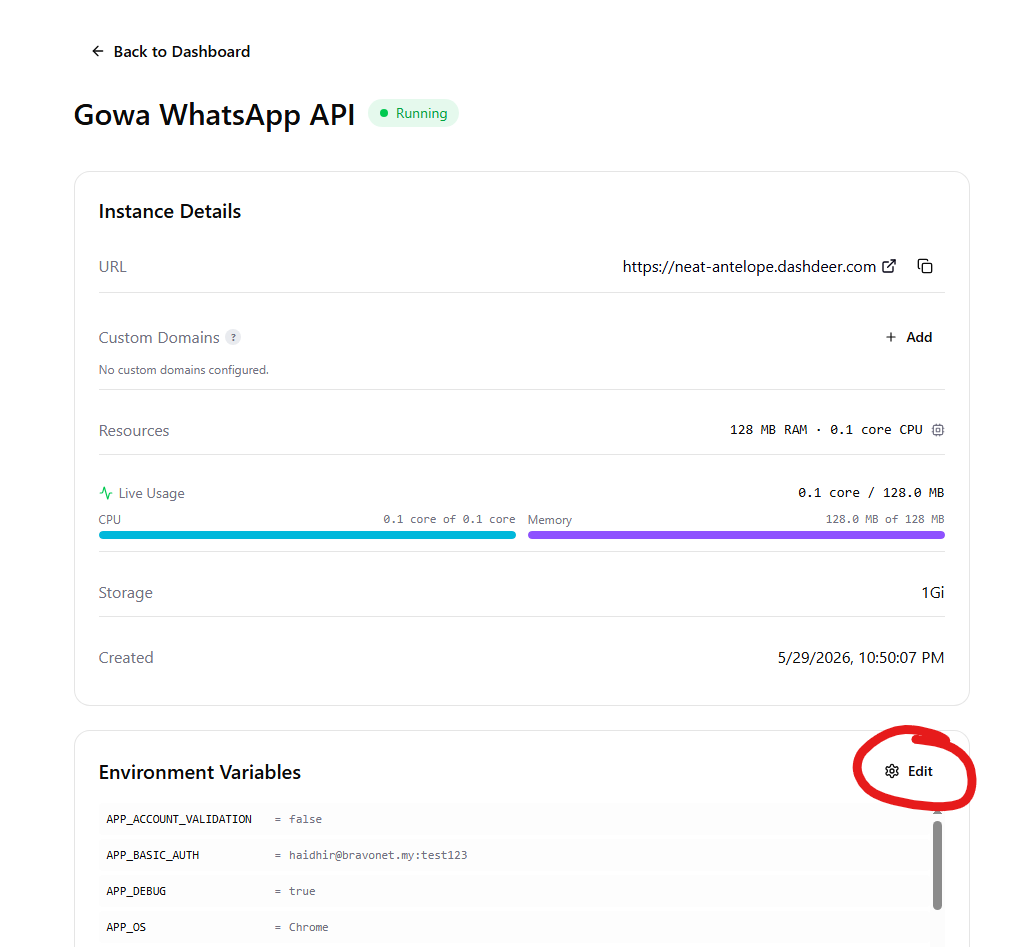
- Click the Edit button.
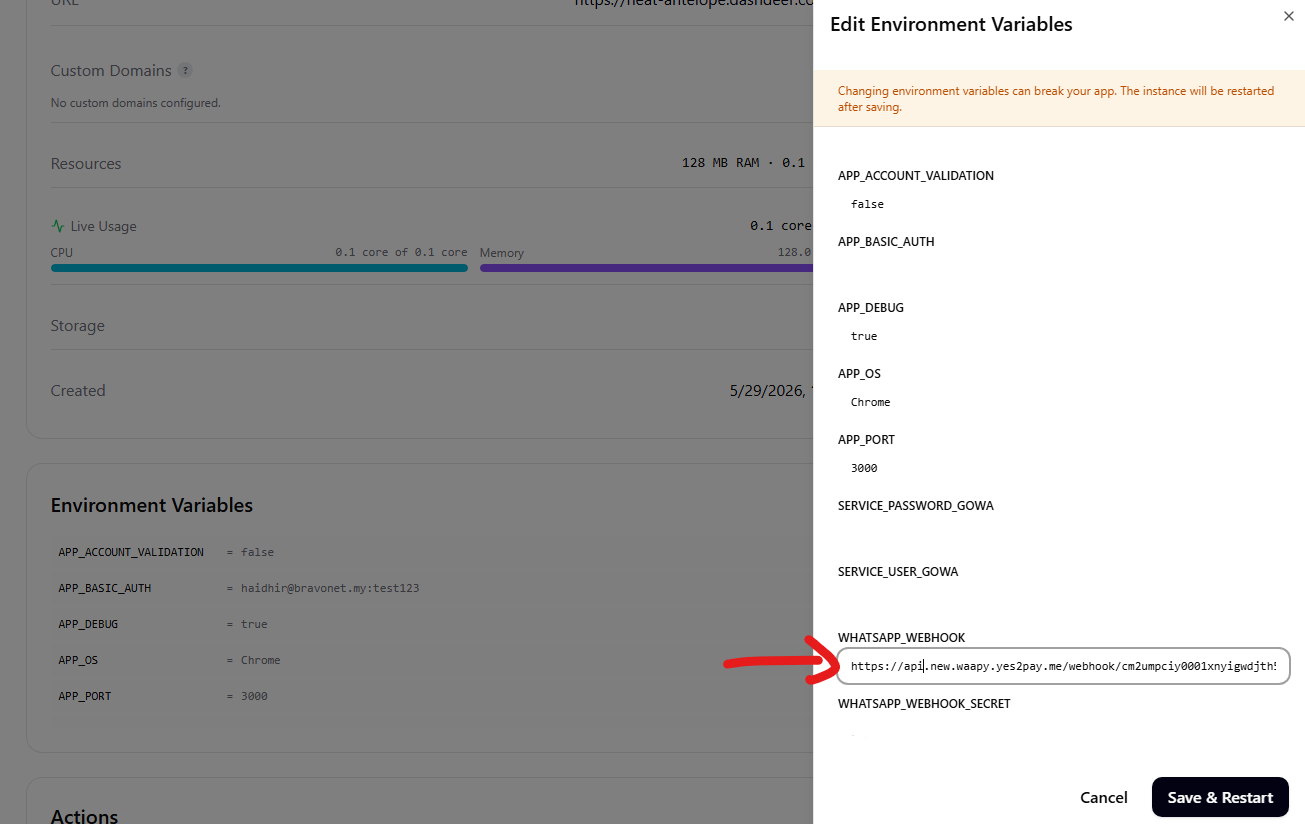
- Paste your WEBHOOK URL here.
- After that, click Save and Restart.