Labels
Quick Overview
This guide shows you how to create and customize labels to organize your chats.
Managing Labels
- Create a Label
- Setup Details
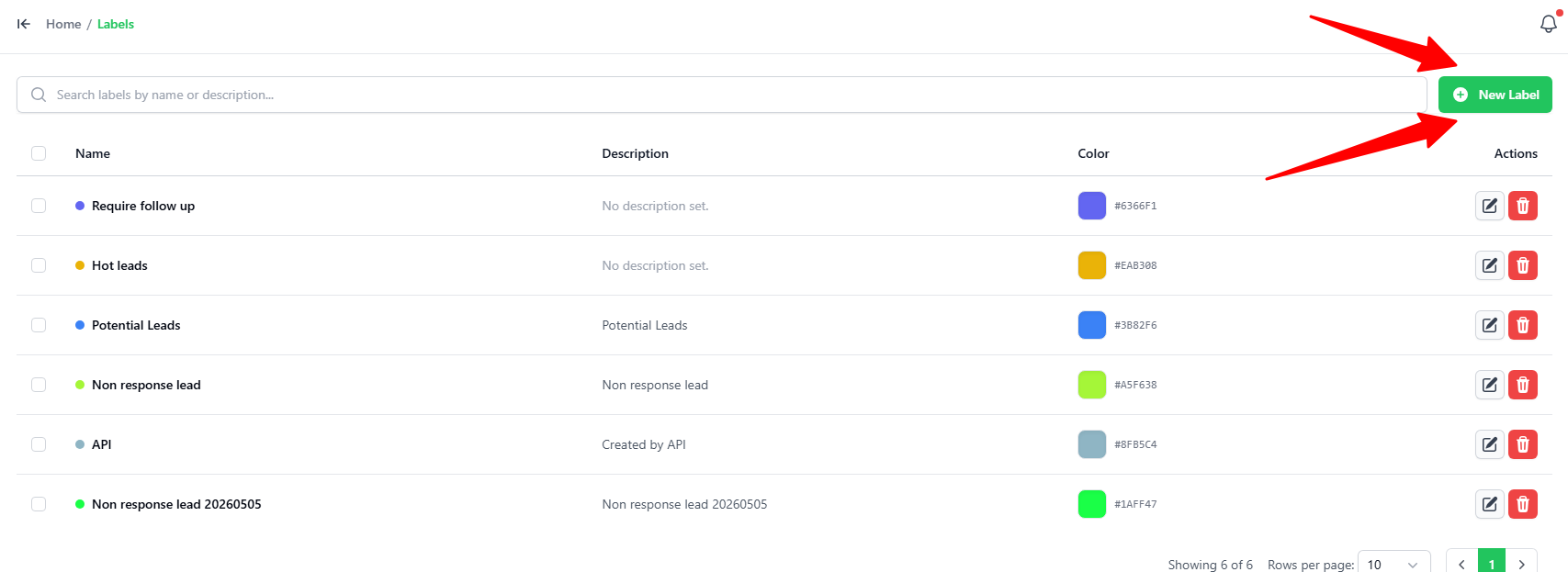
- Go to the Labels tab.
- Click the green + New Label button in the top-right corner.
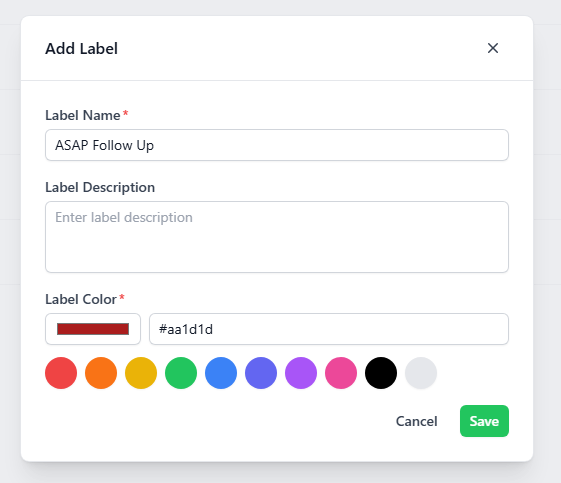
In the Add Label popup, enter the following details:
-
Label Name: Type a short name for your label (e.g., "ASAP Follow Up").
-
Label Description: Type a brief note explaining what the label is used for.
noteThis field is optional.
-
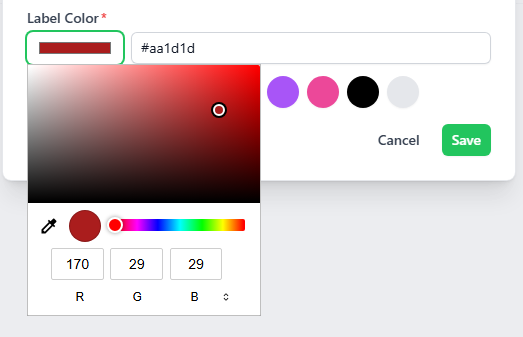
Label Color: Pick a color for your label. You can:
- Click one of the pre-set color circles.
- Click the color box on the left to open the color picker and select a custom color (using hex code or RGB sliders).
-
Click the green Save button to create your label.