Create a Permission Group
Quick Overview
Create a named permission group, then choose the initial permissions it contains. You can leave the group empty and add permissions later.
Create a Group
- Go to the Permissions page.
- Click the green + Add New Group Permission button in the top-right.
- Enter a unique Group Name.
- Check any initial permissions, or leave them unchecked and add them later.
- Click the green Create Group button.
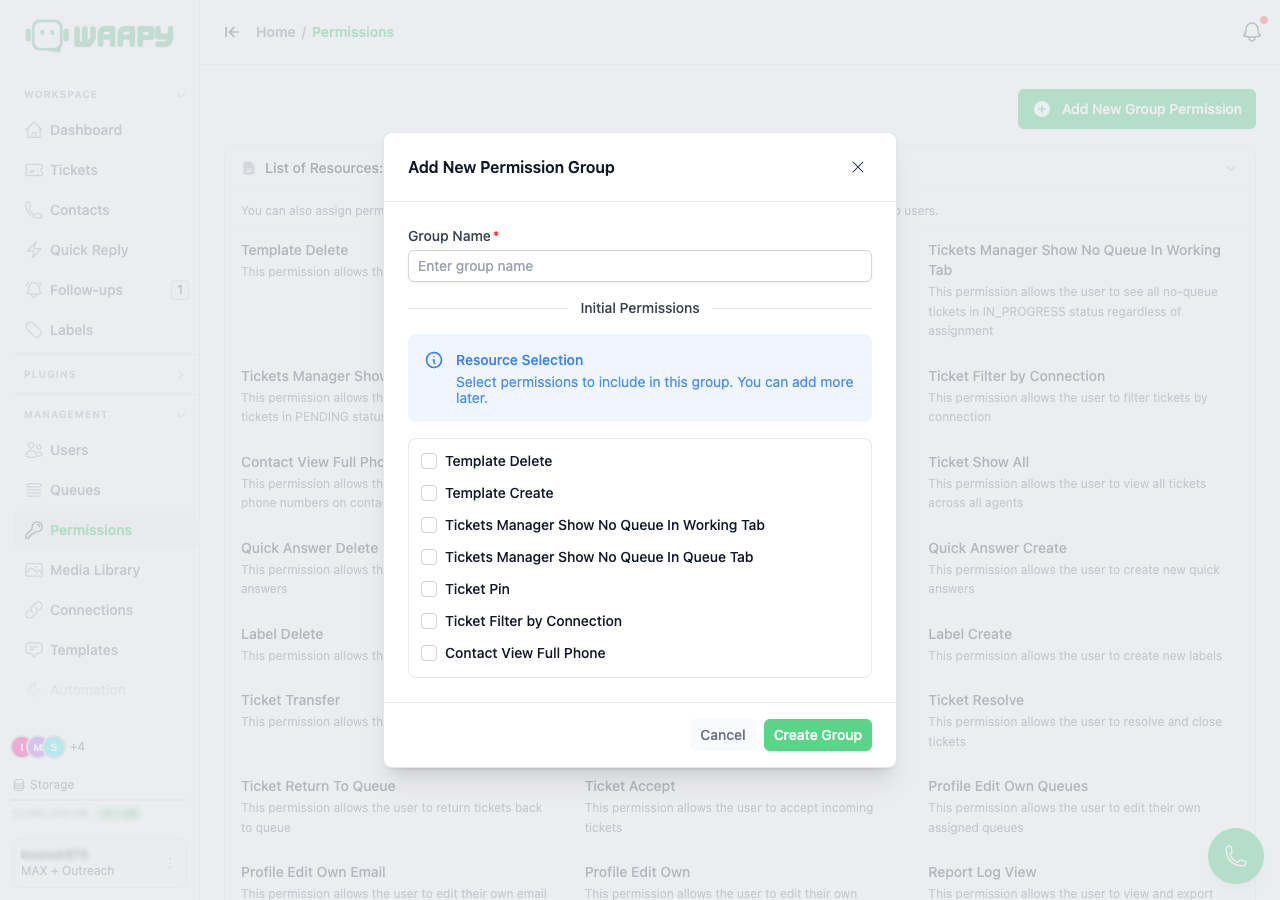
Group names must be unique in the workspace. You can create a group with no permissions, then build it later.
After Creating a Group
- Open the group from the Permissions page to review its resources.
- Use Edit a group to rename it or add more permissions.
- Use Assign Permission Groups to Users on the Overview page to give the group to members.