Quick Reply
This feature is useful if you would like to preset some common replies that a member of staff can use when handling a ticket. This can be used to standardize commonly used replies such as asking a customer to wait while an appointment is being made, a thank you message after a ticket is closed, or to provide standard advice.
Managing Quick Replies
Select a tab below to learn how to create and use quick replies:
- Create Quick Reply
- How to Use
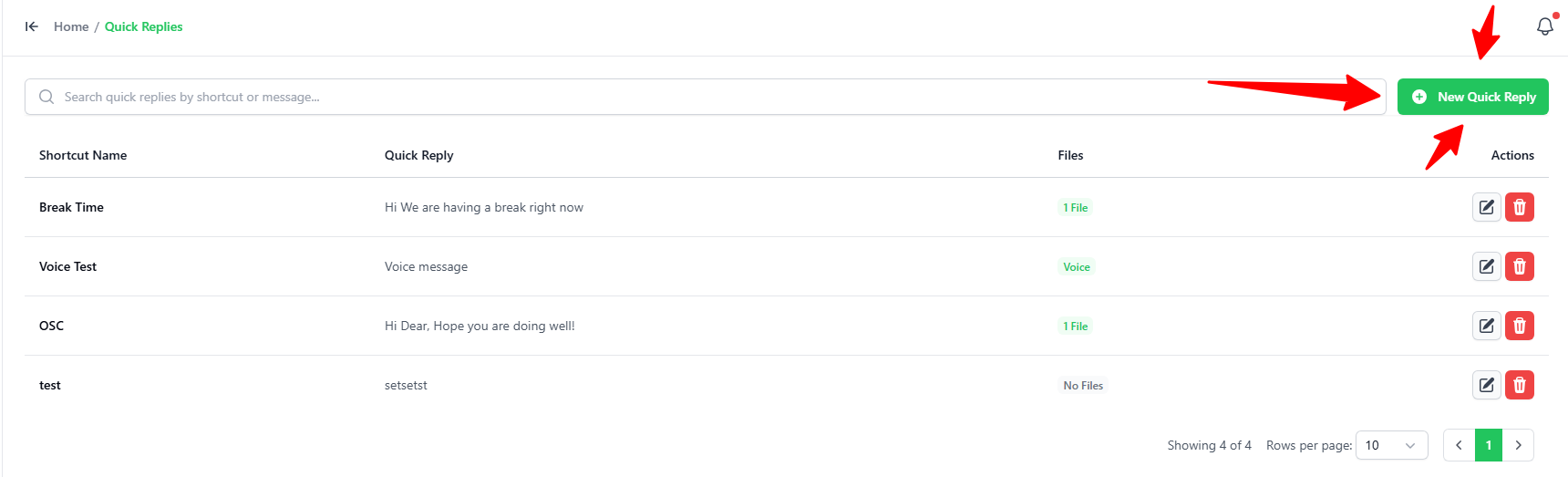
- Go to the Quick Replies tab.
- Click the green + New Quick Reply button in the top-right corner.
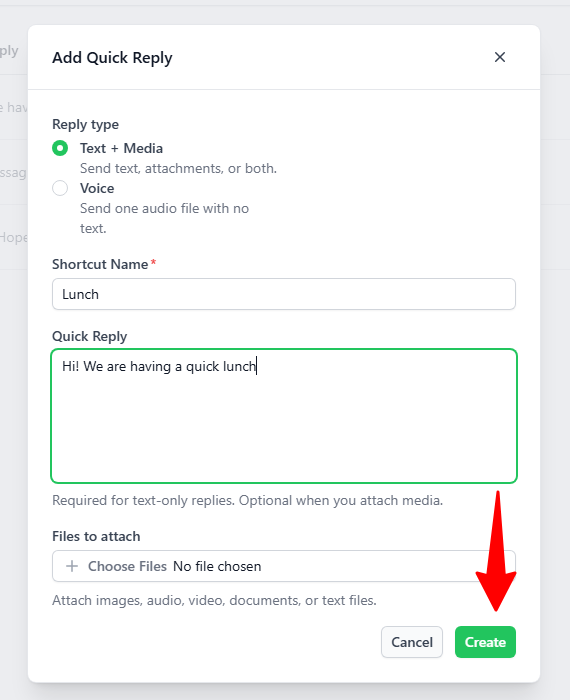
In the Add Quick Reply popup, enter these details:
-
Reply Type: Select Text + Media (to send text and/or files) or Voice (to send a voice recording file).
-
Shortcut Name: Type a short word or keyword (like
LunchorGreeting). This is what you will type to find the reply. -
Quick Reply Text: Type the message you want to save.
noteFiles to attach: You can optionally click Choose Files to attach images, audio, video, or documents.
-
Click the green Create button.
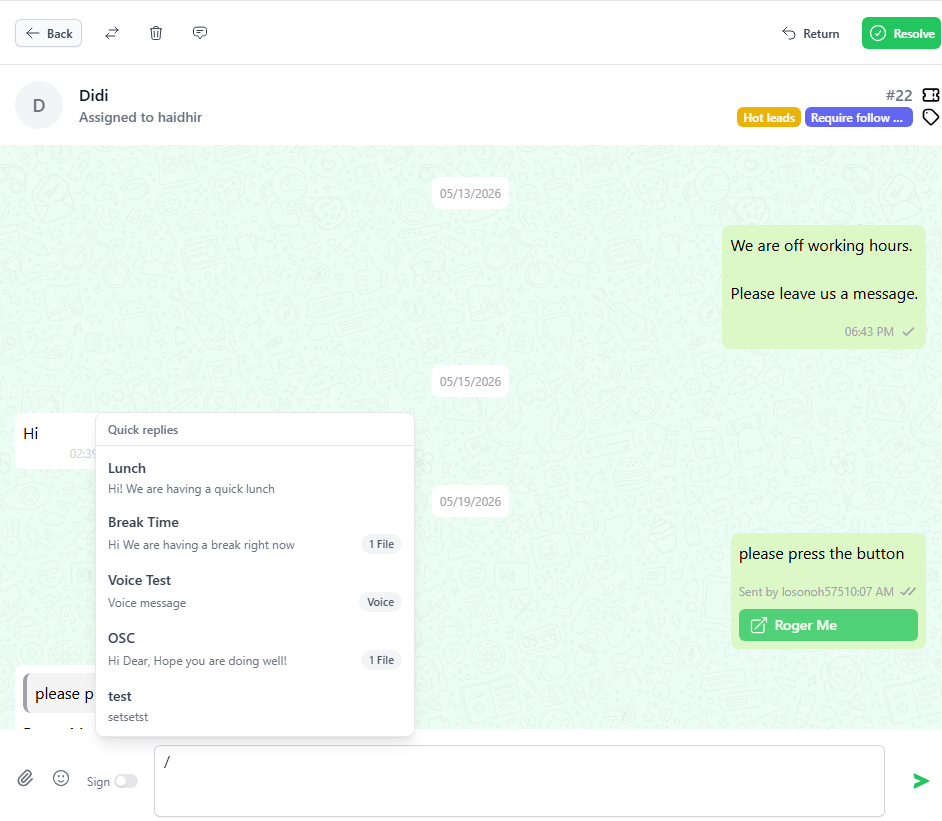
Open any customer chat:
- Click the text box at the bottom and type a slash:
/ - A list of your quick replies will pop up.
- Click on the one you want to use, or keep typing the shortcut name to search for it.
- The message will automatically fill into your text box.