Creating a Template
Creating a template runs in two steps. The setup step picks the WhatsApp connection and the category, and the details step fills in the name, language, content, variables and buttons while a live preview shows the message as the customer will receive it.
Step 1: Set Up the Template
Open Templates and click Add Template to start the wizard. The first step asks for two things:
- WhatsApp connection: the connection that owns the template. The list holds every WhatsApp connection in the workspace, and an unofficial connection shows its name in brackets with the word unofficial.
- Category: Marketing, Utility or Authentication. Authentication is marked Coming Soon.
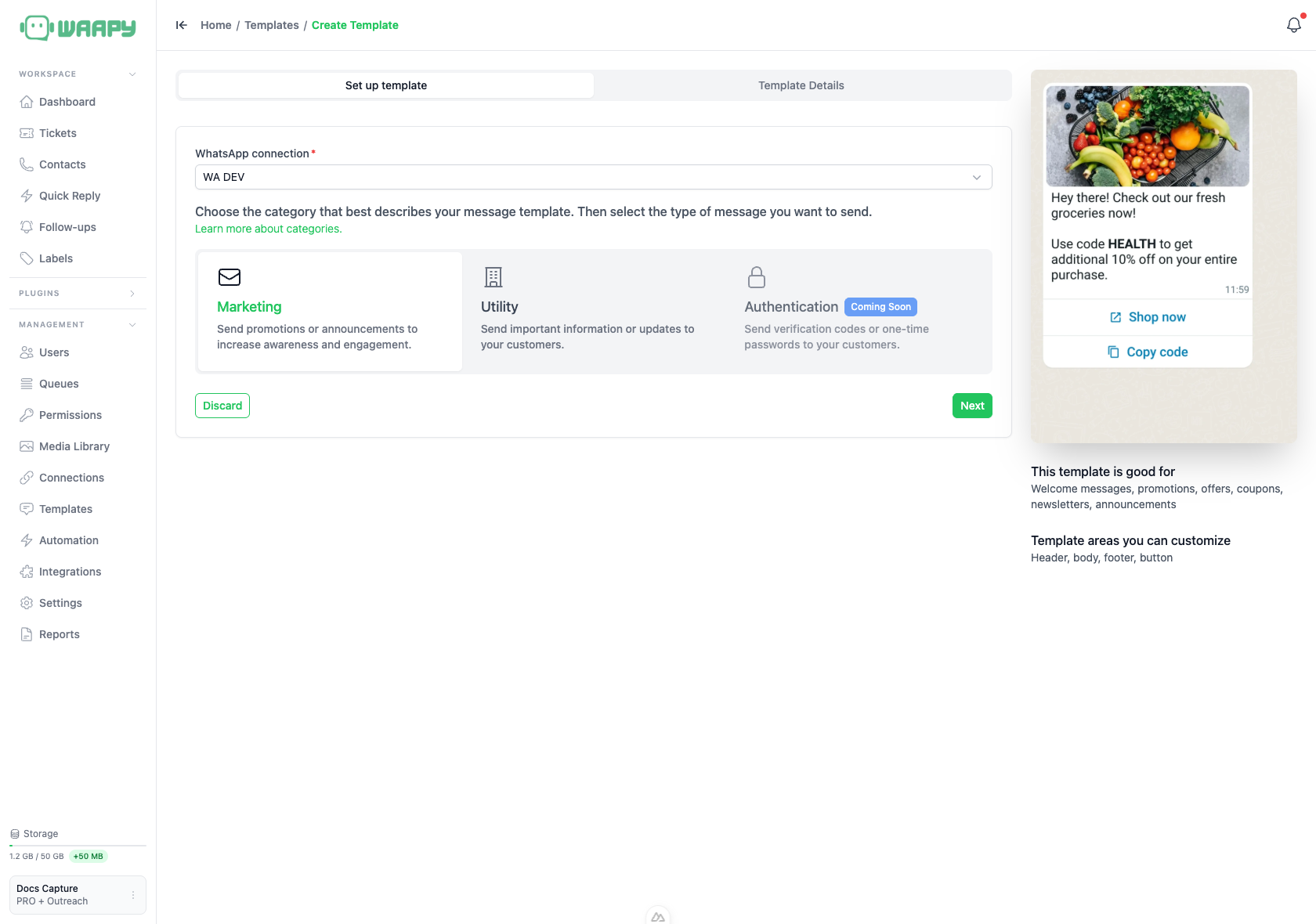
The panel on the right explains the category you picked. It lists what the category is good for, for example order confirmations and reminders for Utility, and the areas you can customise: header, body, footer and button.
Click Next to move to the details step. Click Discard to leave the wizard without saving anything.
The wizard needs a connection before it lets you continue. If your workspace has no WhatsApp connection with template support, the page shows No WhatsApp connection available instead.
Step 2: Name and Language
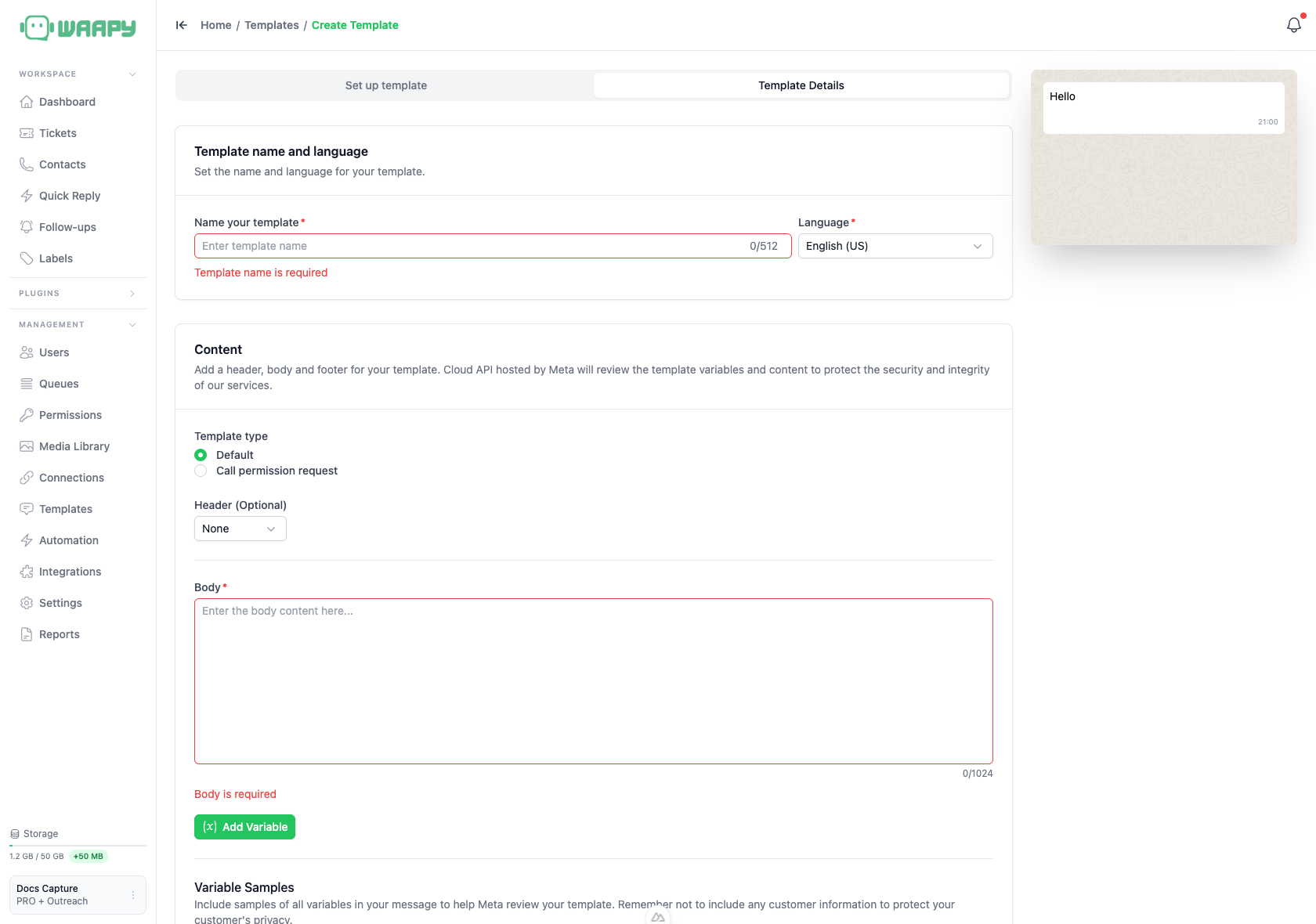
The Template name and language card holds the two fields that identify the template:
- Name your template: the name that identifies the template in the list and that Meta records. It accepts up to 512 characters, and the platform lowercases the value and turns spaces into underscores, so
Promo Offerbecomespromo_offer. - Language: the language the template is written in. It defaults to English (US), and the list covers the languages Meta supports.
Template Type
On an official connection you can pick the type of message:
- Default: a standard template with a body.
- Call permission request: a template that asks the customer for permission to receive calls. It needs a body message, it only works with the Marketing or Utility category, and it cannot carry buttons.
Adding the Content
The Content card holds the parts of the message:
- Header (Optional): None, Image, Video or Document. Choose a type other than None and the Header File field appears. An image can be up to 5 MB, a video up to 16 MB and a document up to 100 MB.
- Body: the main text of the message, up to 1024 characters. This field is required.
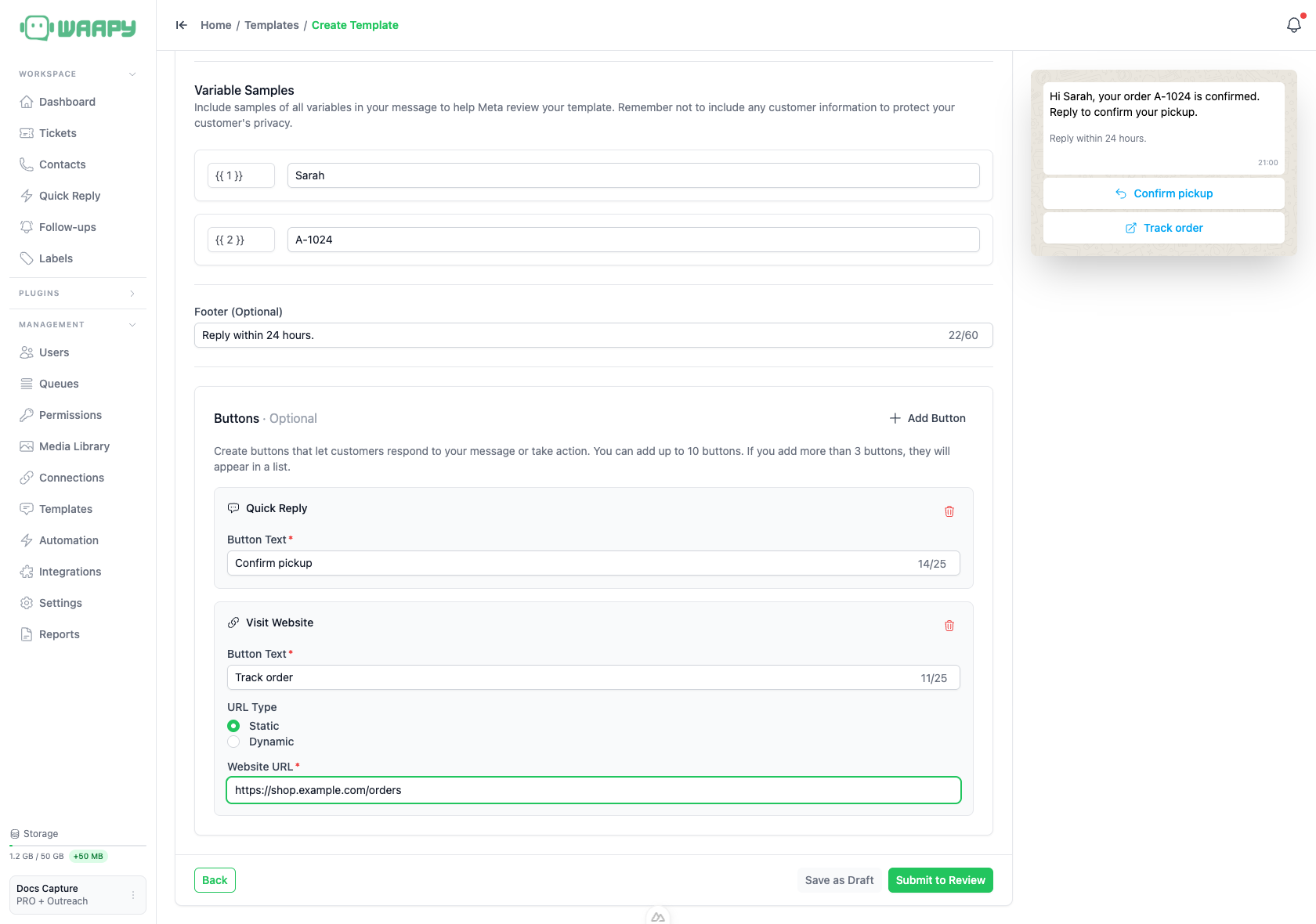
- Footer (Optional): a short line under the body, up to 60 characters.
- Buttons · Optional: the actions the customer can take, added with Add Button.
Writing Variables
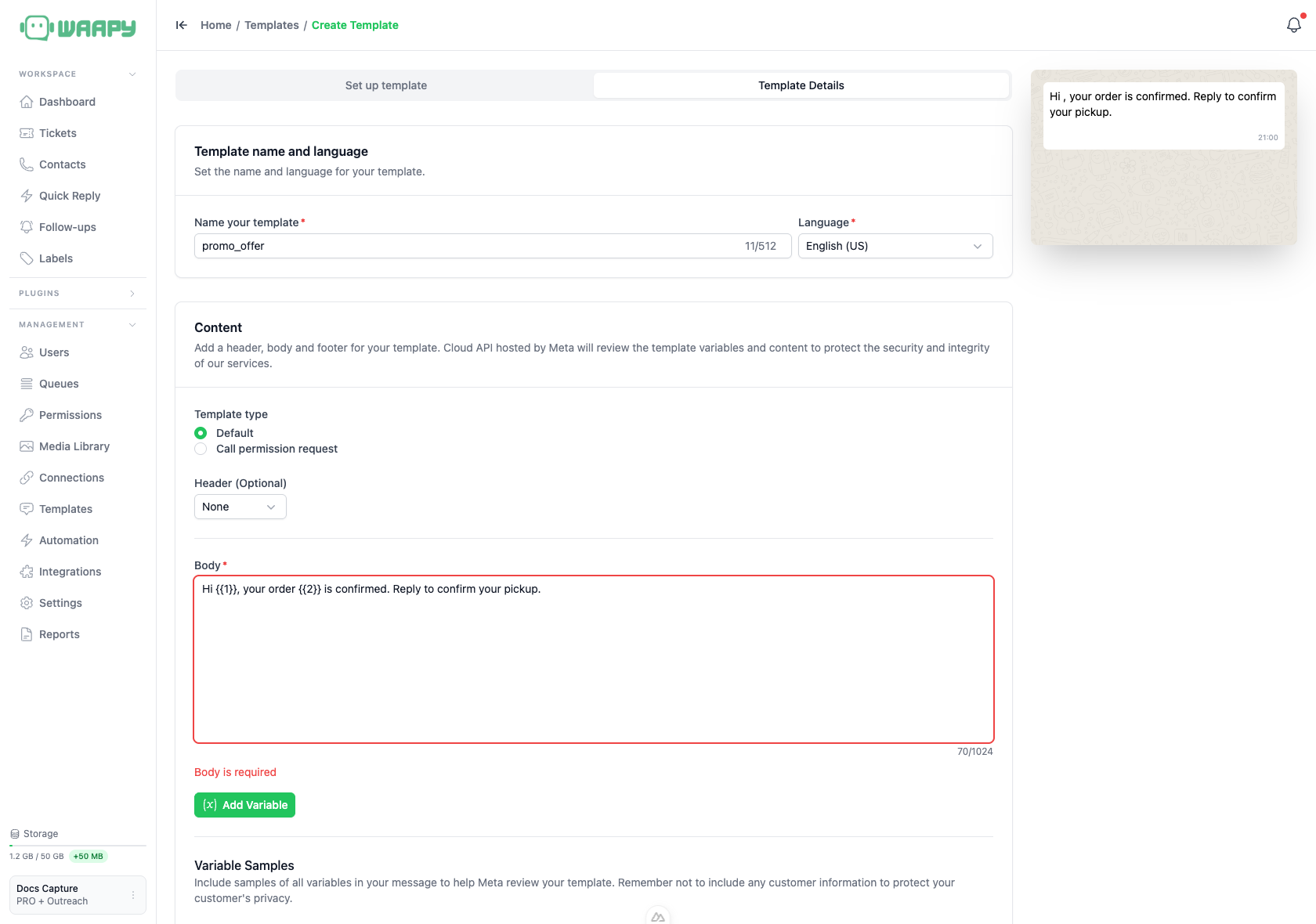
A variable is a placeholder that changes per customer, written as {{1}}, {{2}} and so on. Type the placeholder into the body, or click Add Variable to insert the next number at the cursor.
Two rules apply to every variable:
- Each number can appear only once. The platform rejects a body that repeats
{{1}}. - A variable cannot sit at the start or the end of the body. Put text before and after it, because Meta reads the surrounding words when it reviews the template.
Adding Sample Values
Every variable needs a sample value before the template can go to Meta. The Variable Samples section lists the variables you used, and each row asks for a sample. Use made-up content such as a first name or an order number, and never customer data, because Meta reviews the samples along with the template.
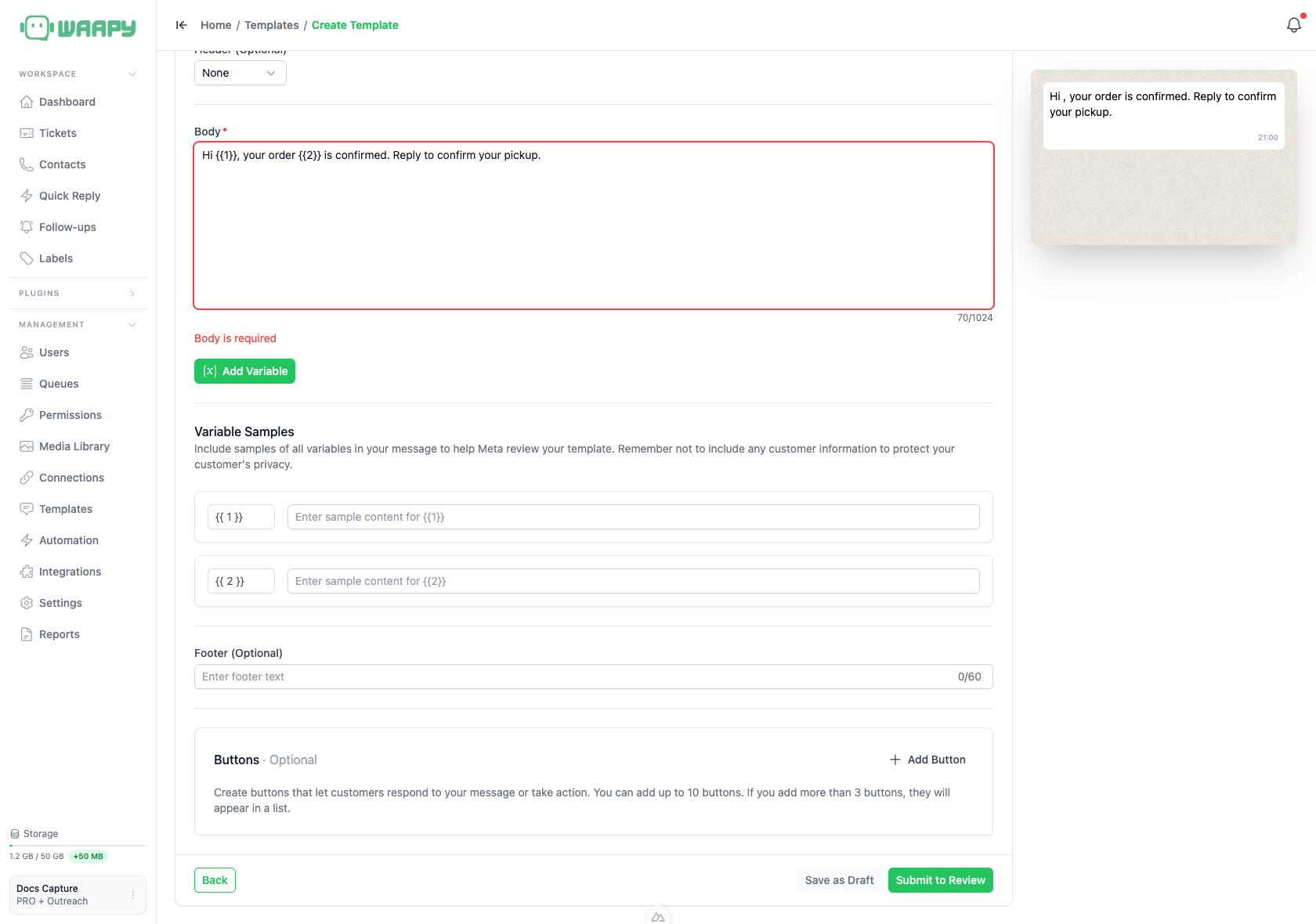
The samples also fill the preview, so you can check the message before it reaches Meta.
Adding Buttons
Add Button offers two button types:
- Quick Reply: a reply the customer sends back by tapping the button.
- Visit Website: a link the customer opens. Set the URL Type to Static for a fixed address, or to Dynamic when the address ends in a variable. A Dynamic button also needs a Sample URL so Meta can review the link.
You can add up to 10 buttons. Each button takes a Button Text of up to 25 characters, and a Visit Website button also needs a Website URL.
The Live Preview
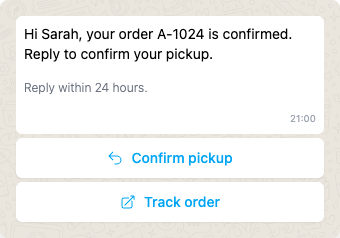
The panel on the right renders the template as a chat bubble and updates while you type. It shows the header media, the body, the footer, the timestamp and the buttons. When a template carries more than three buttons, the preview shows the first two and a See all options row.
Saving the Template
The footer of the details step holds three buttons:
- Back: returns to the setup step.
- Save as Draft: stores the template locally with the Draft status. A draft never reaches Meta, and you can keep editing it.
- Submit to Review: sends the template to Meta for review. On an unofficial connection the same button reads Create Template, because nothing is sent to Meta.
Once the template is saved, the page returns to the template list and the new template appears there. On an official connection, the platform syncs the template from Meta right away so the list shows its current status.
When the Template Is Rejected
The wizard checks the template while you work and again when you save it. Each problem appears under the matching field, and the same message returns in a toast when the save fails. The platform reports these problems:
- Template name is required: the name field is empty.
- Language is required: no language is selected.
- Body is required: the body field is empty.
- Body must be at most 1024 characters: the body is longer than WhatsApp allows.
- Duplicate variables are not allowed. Use each
{{n}}only once.: the body repeats a variable number. - Variables can't be at the start or end of the template body.: a variable opens or closes the body.
- Spintext is only supported on unofficial WhatsApp templates.: a spintext option sits in the body of an official template.
- Button text must be at most 25 characters: a button label is too long.
- You can add up to 10 buttons: the template carries more buttons than WhatsApp allows.
- Call permission request templates cannot include buttons.: a call permission request template has a button.
A call permission request template also needs a body message, and it only works with the Marketing or Utility category.