Managing Templates
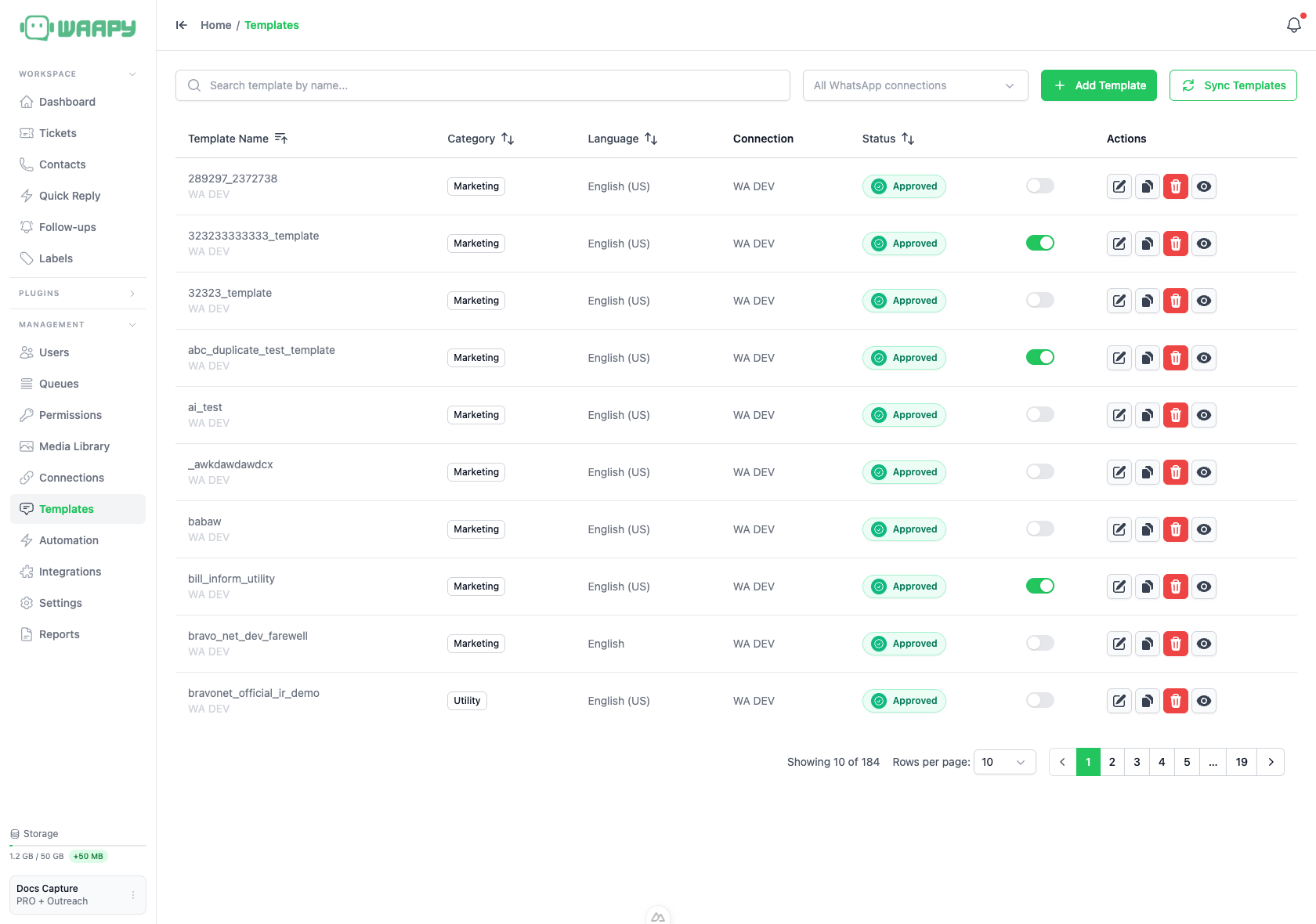
The Templates page lists every template in your workspace, filters the list by connection, and offers the actions that apply to a template: edit, duplicate, submit for review, delete or preview. This page explains each column, each status and each action.
Searching and Filtering the List
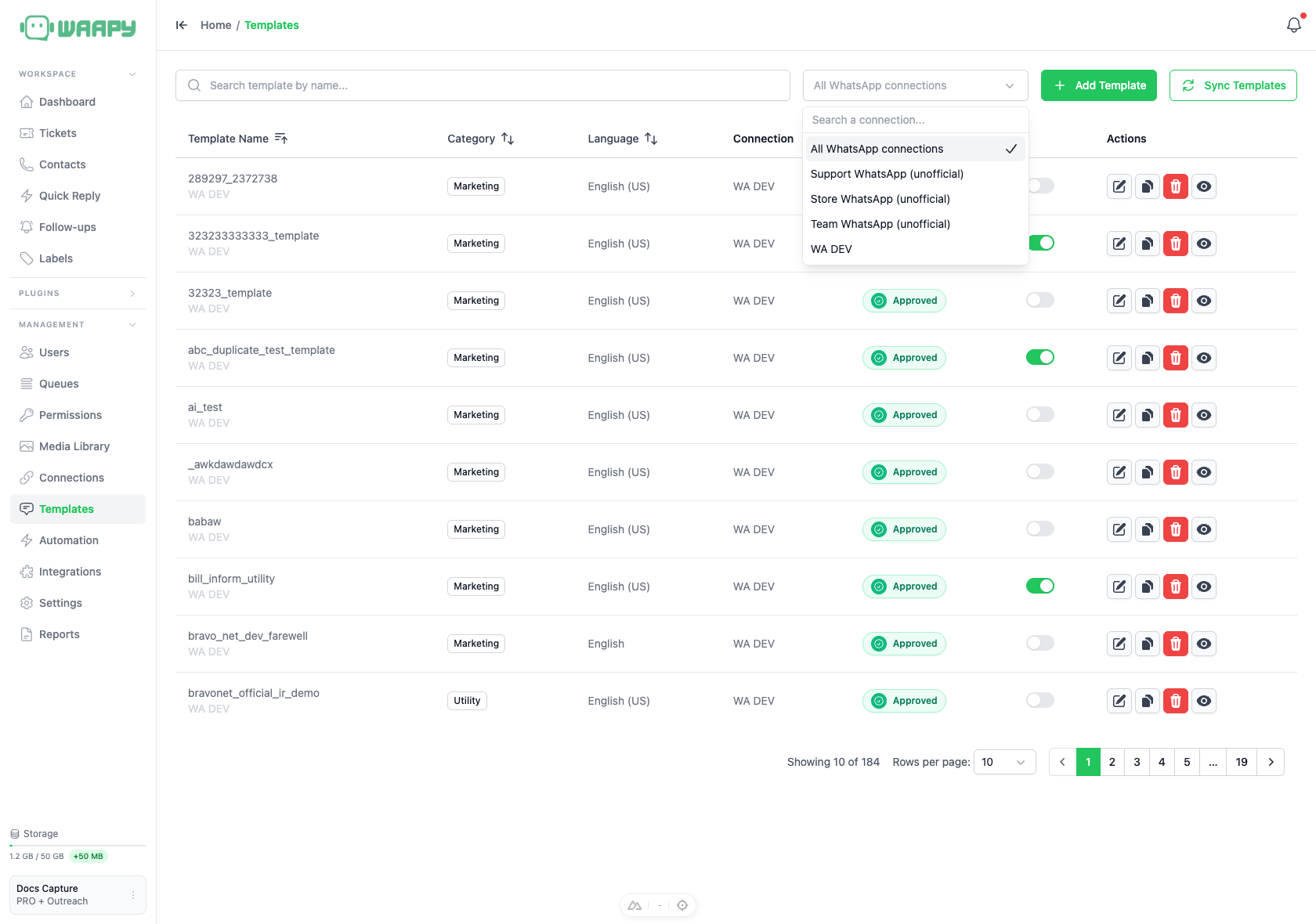
Two controls sit above the table:
- Search template by name...: filters the list by template name. Type at least 3 characters before the search runs.
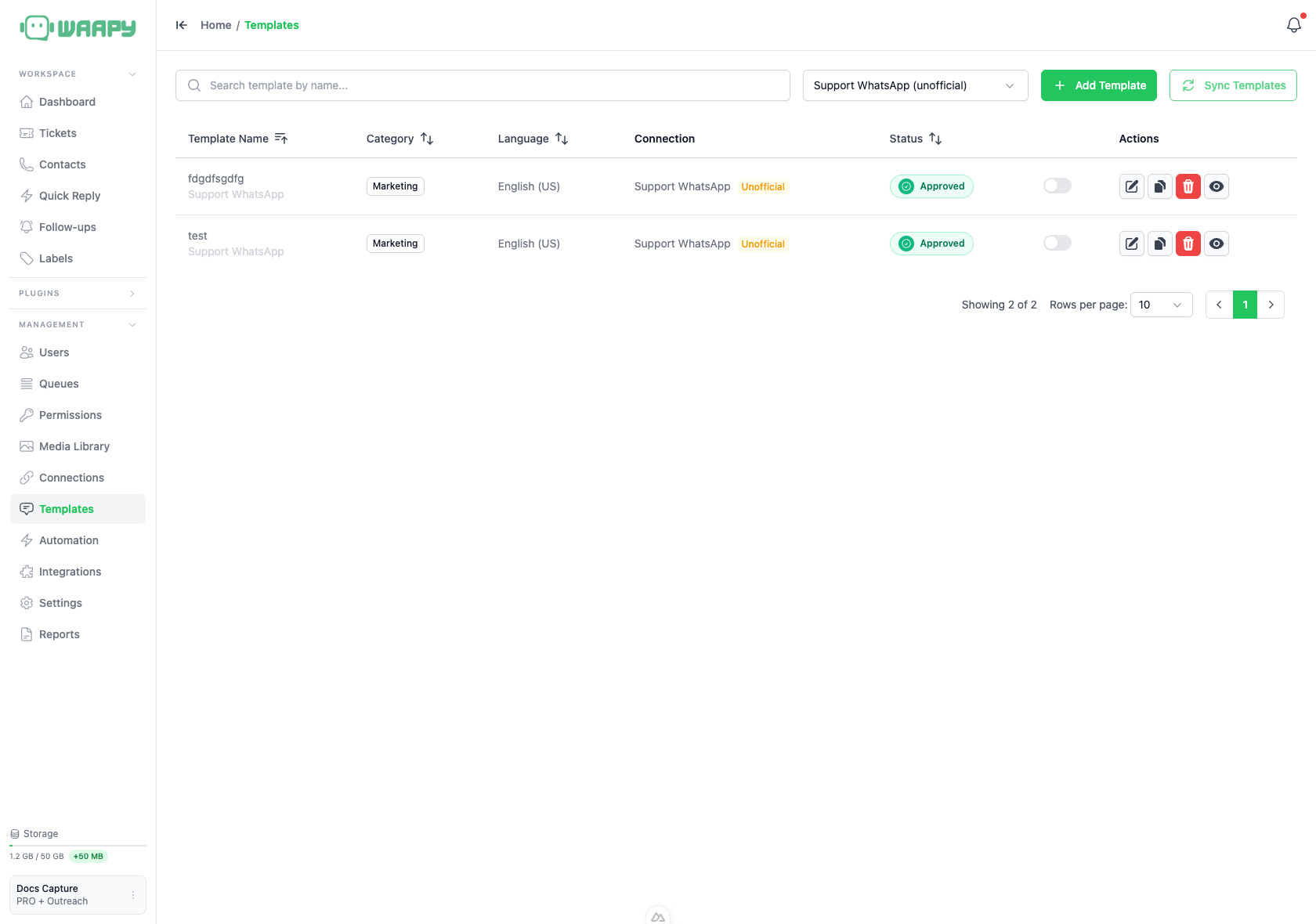
- All WhatsApp connections: limits the list to a single connection. An official connection shows its plain name, and an unofficial connection shows its name in brackets with the word unofficial.
Reading a Template Row
Every row shows the same columns:
- Template Name: the template name, with the connection name underneath.
- Category: Marketing, Utility or Authentication.
- Language: the language the template is written in, such as English (US).
- Connection: the WhatsApp connection the template belongs to. A template on an unofficial connection carries an Unofficial badge.
- Status: where the template sits in the approval flow.
- Actions: the buttons that apply to that template.
Template Statuses
The status column shows one of the following labels:
| Status | What it means |
|---|---|
| Approved | Meta approved the template and it can send. |
| Pending | Meta is reviewing the template. |
| Rejected | Meta refused the template. Edit it and submit it again. |
| In Appeal | An appeal against the rejection is in progress. |
| Paused | Meta paused the template after negative customer feedback. |
| Disabled | Meta disabled the template. |
| Pending Deletion | The template is scheduled for deletion. |
| Deleted | The template was removed. |
| Limit Exceeded | The template hit a Meta messaging limit. |
| Draft | The template is saved locally and was not sent to Meta. |
The status decides which actions you can use. A Pending template cannot be edited or deleted, and a Paused template can be edited but not deleted.
Enabling and Disabling a Template
The toggle in the row switches a template on or off for your team. Admins can flip it, and only Approved templates expose it. A template you switch off does not appear when you pick a template to send.
Actions
- Edit template: opens the template in the editor. Available to admins on Approved, Rejected, Paused and Draft templates.
- Duplicate as draft: copies the template into a new draft called
<name>_copyso you can reword it without touching the original. Available to admins on every template. - Submit draft to review: sends a Draft to Meta for review. Available to admins on Draft templates only.
- Delete template: removes the template. Available to users who hold the template delete permission, on Approved, Rejected and Draft templates.
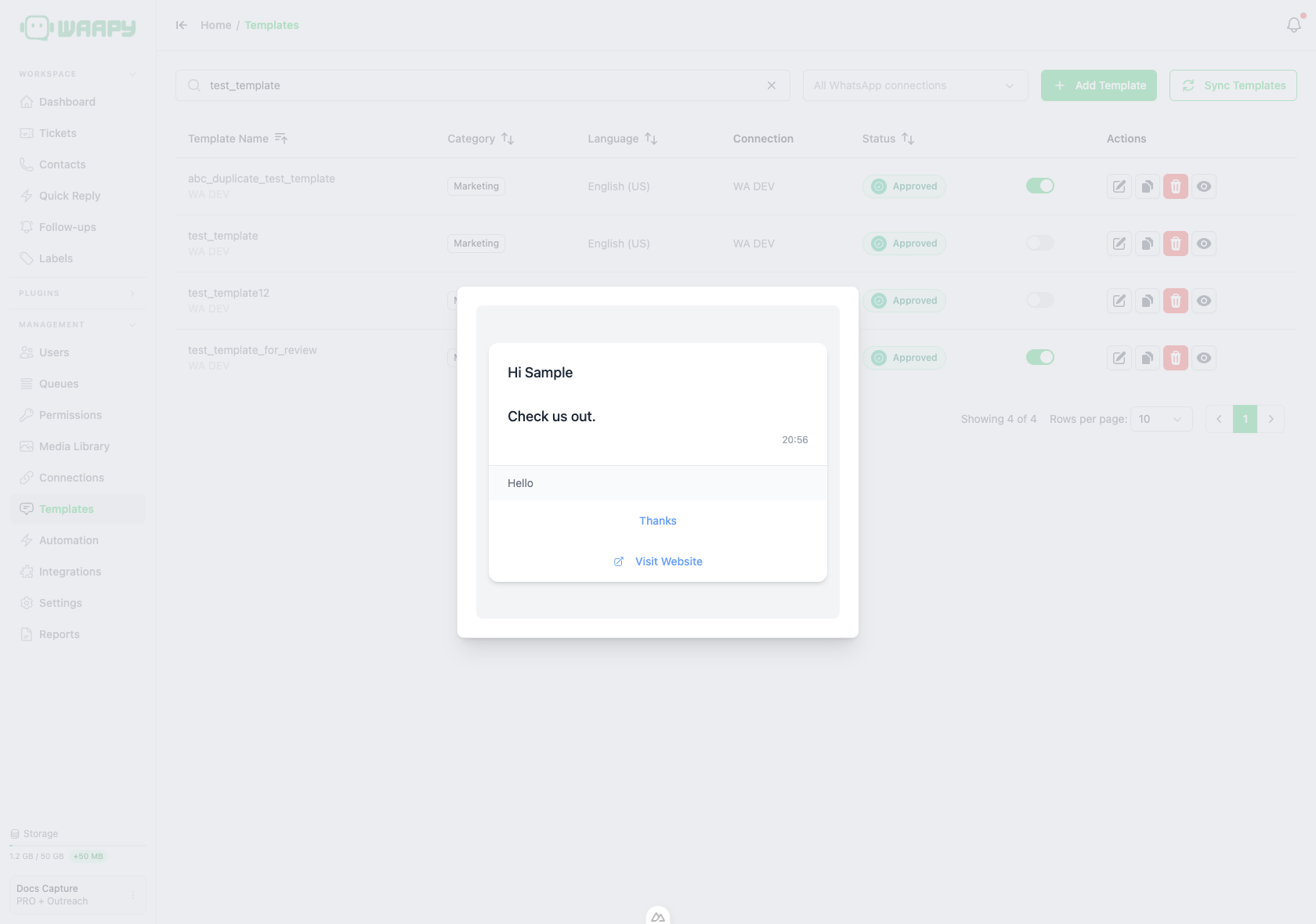
- Preview template: opens the message as the customer sees it. Available to everyone.
Previewing a Template
The preview shows the header, body, footer and buttons in a chat bubble. Where the body holds a variable, the preview fills it with the sample value you entered, so you can check the wording before the template reaches Meta.
Deleting a Template
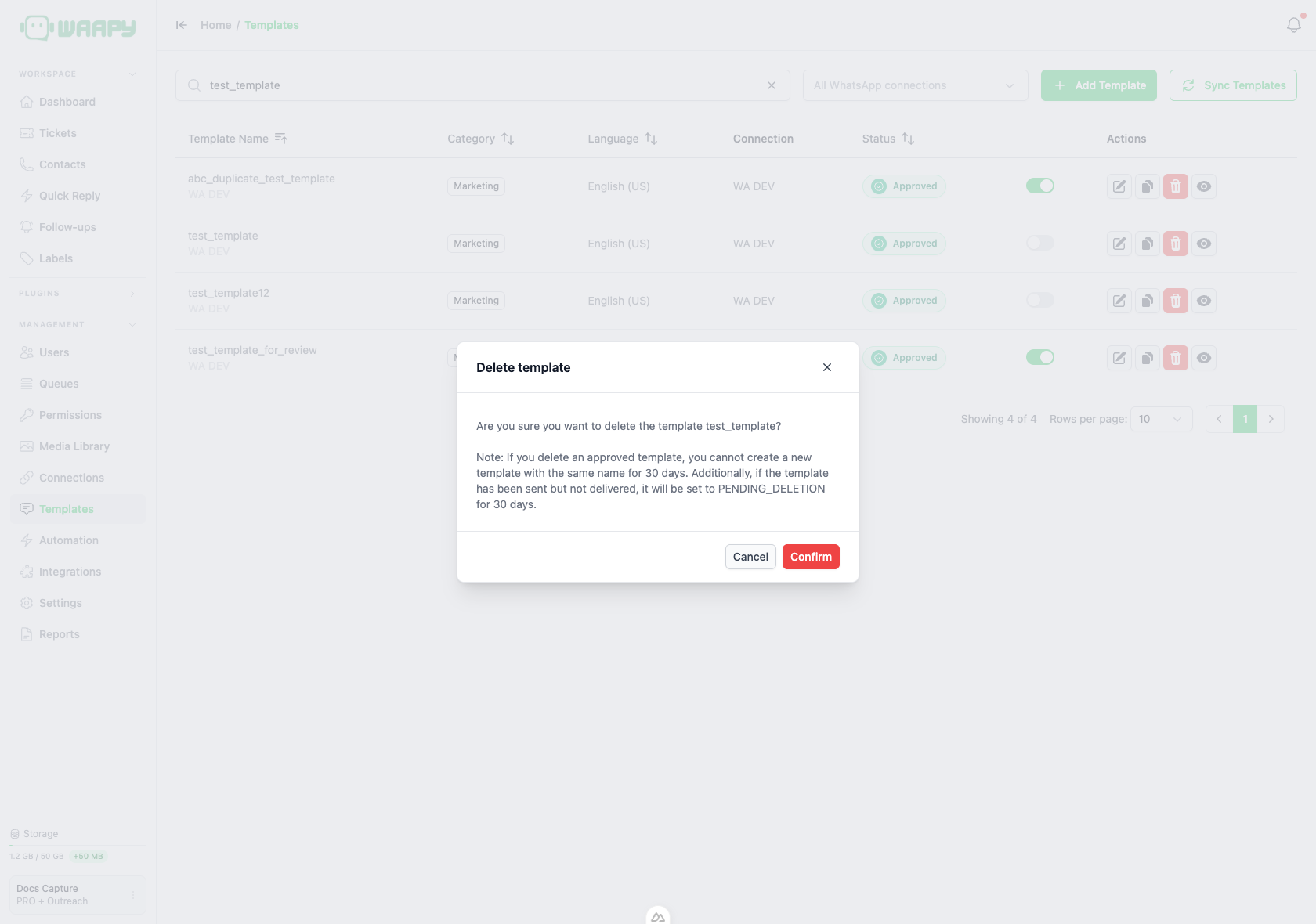
The confirmation dialog names the template and repeats the two rules that follow a deletion. Once an approved template is deleted, you cannot create a new template with the same name for 30 days. A template that was sent but not delivered is set to Pending Deletion for 30 days.
Empty States and Pagination
When a workspace has no WhatsApp connection with template support, the page shows No WhatsApp connections available and a button that opens the Connections page. When a connection has no templates yet, the page shows No templates found.
The footer of the table shows how many templates match the current filters and lets you set the rows per page to 10, 25, 50 or 100.