Official (WhatsApp)
An official connection is a WhatsApp number connected through Meta. Every template you create on it goes to Meta for review before it can send, and the template list mirrors the status Meta assigns to it.
How a Template Reaches Approval
A template on an official connection moves through the review flow:
- Create the template and pick Submit to Review. The platform sends it to Meta and the template appears in the list with the Pending status.
- Meta reviews the template, and the review can take up to 24 hours.
- The template turns Approved and can be sent. If Meta refuses it, the status becomes Rejected, and you can edit the template and submit it again.
The platform syncs the template from Meta right after you save it, and the status column updates on every later sync.
Template Types
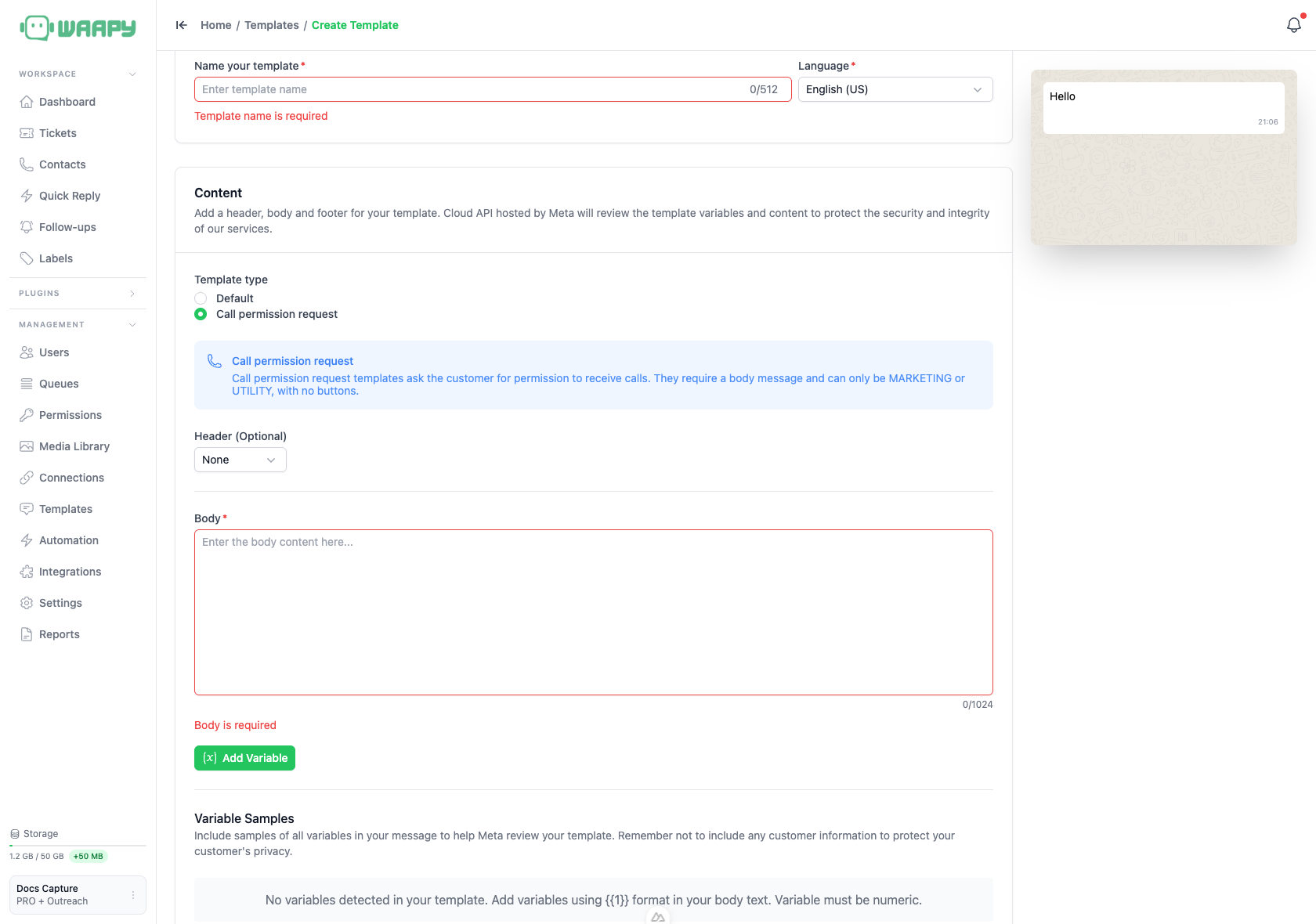
The Template type field offers two options on an official connection:
- Default: a standard template with a body.
- Call permission request: a template that asks the customer for permission to receive calls. It needs a body message, it only works with the Marketing or Utility category, and it cannot carry buttons.
Syncing Templates From Meta
Sync Templates pulls your templates from Meta and refreshes their name, category, language, status and content. Admins can use it, and it runs across every official WhatsApp connection in the workspace unless you pick a single connection in the filter first.
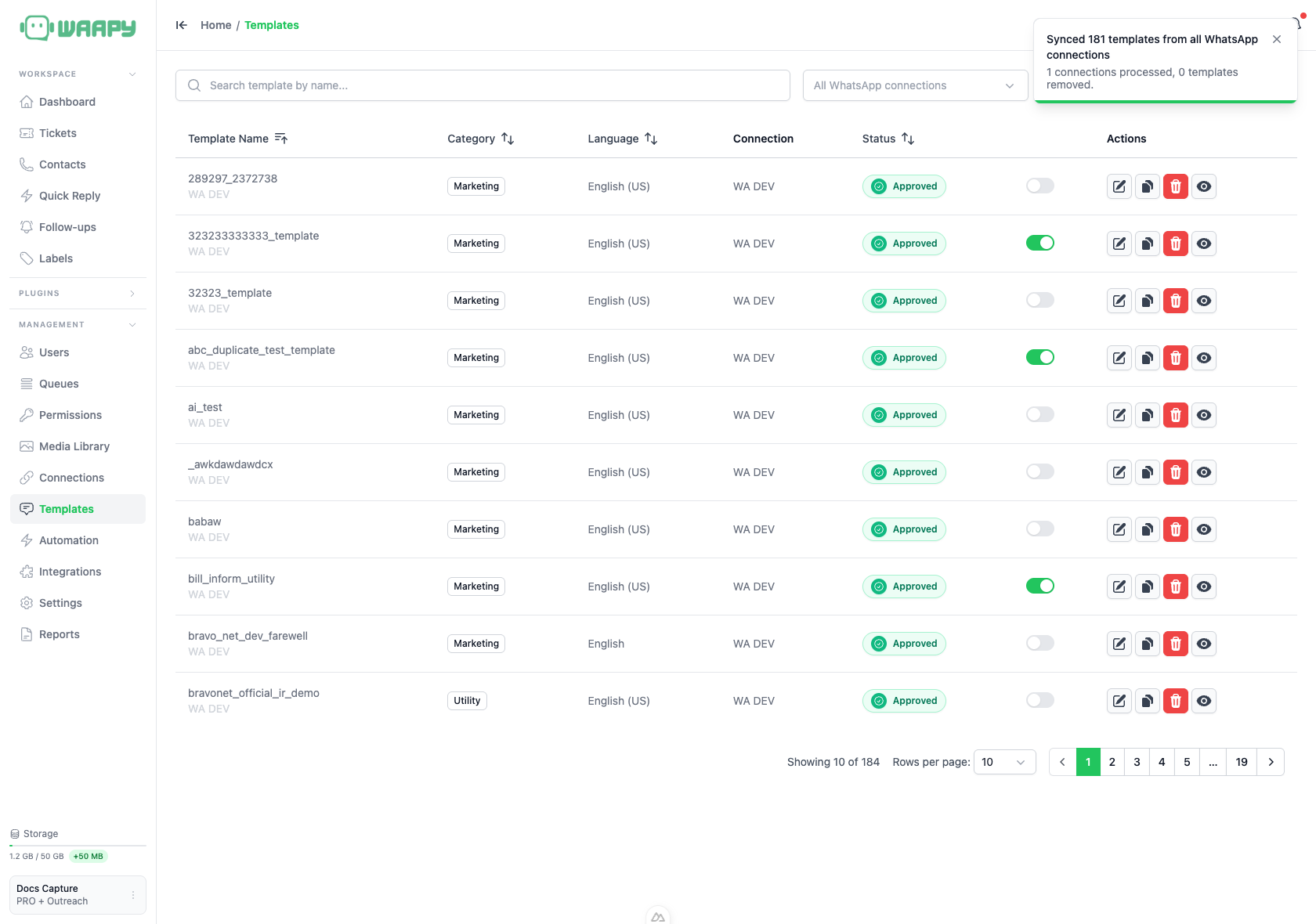
The toast reports how many templates arrived, how many connections were processed and how many templates Meta no longer has. When a connection fails or is skipped, the platform opens the Template sync details dialog with the counts for processed connections, synced templates and deleted templates, plus the list of skipped connections and failures.
Two rules matter when you work with synced templates:
- A template that Meta no longer lists is removed from the list, together with its content.
- A template that is Rejected or Paused loses its edit history when the next sync runs.
Editing an Approved Template
Meta limits how often an approved template can change. The platform shows the rule on the template screen:
- An approved template can be edited up to 10 times in a 30-day window, and up to 1 time in a 24-hour window.
- A rejected or paused template can be edited an unlimited number of times.
An approved template also loses the fields that would change its identity:
- The name and the language cannot be changed.
- The category cannot be changed, and the category cards lock once the template is approved.
Deleting a Template
Deleting an approved template also deletes it in Meta. You cannot create a new template with the same name for 30 days, and a template that was sent but not delivered is set to Pending Deletion for 30 days.
Creating Templates in Meta Instead
You can also create and submit templates directly in your Meta Business Manager account. The Meta Templates page walks through that route.