Using Templates
Templates reach your customers from several places in WaaPY: the ticket composer when a conversation has gone quiet, scheduled messages that need a fallback, the greeting and farewell messages of a connection, and blast campaigns that send in bulk.
Sending a Template From a Ticket
WhatsApp closes the customer window 24 hours after the customer last wrote to you. Inside that window you reply in free form, and after it closes Meta only accepts a template.
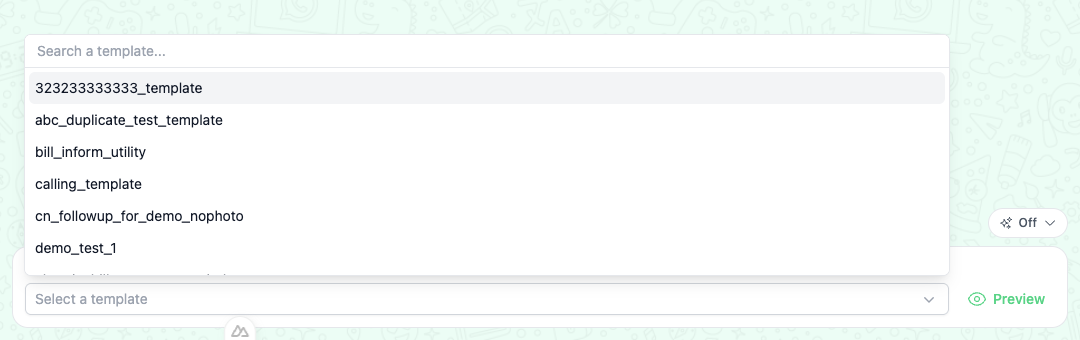
When a ticket passes the 24-hour mark, the composer replaces the message box with a template picker and shows this notice:
Your ticket is more than 24 hours old. Please use template to send a message.

Pick a template from Select a template and the list shows the enabled templates of that ticket's connection. The picker searches by name, so type at least 3 characters to narrow the list.
An unofficial connection has no 24-hour window, so its tickets keep the free-form message box and never show this picker.
Filling the Dynamic Values
A template with variables needs a value for each one before it can be sent. Click Preview next to the picker and the Fill template data dialog opens. It shows the message as the customer will receive it and one field per variable, labelled by the part of the template it fills, such as Body Parameter 1 or Button Parameter 1.
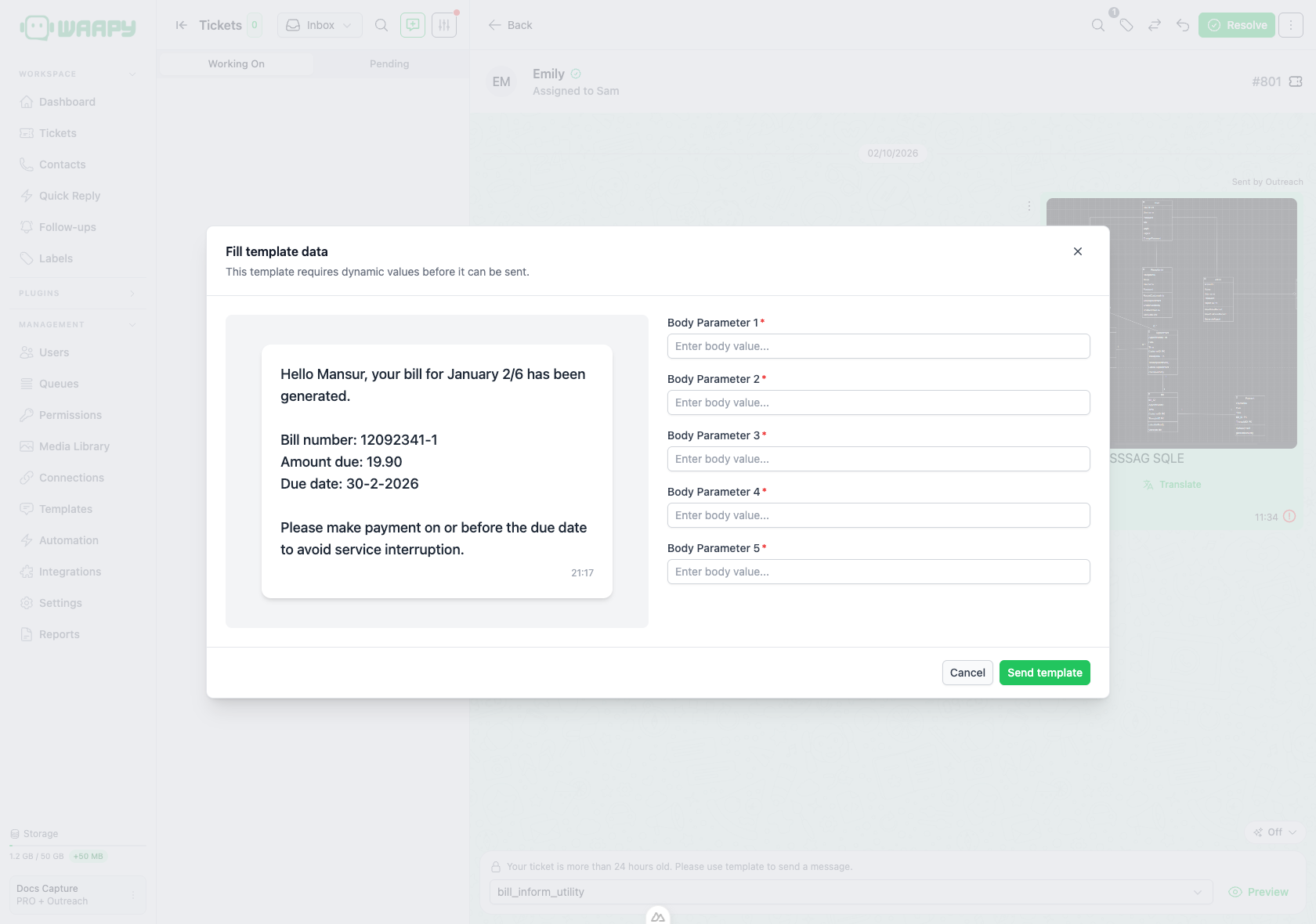
Fill every field and click Send template to deliver the message. Click Cancel to leave the dialog and keep the template selected.
Template Fallback for Scheduled Messages
A scheduled message sends at the time you picked. If the customer window has closed by then, the message needs a template to get through.
Open a scheduled message and expand Template fallback (optional), then pick the template the platform should send when the window is closed. The fallback only applies to WhatsApp tickets, and a template without variables is sent as it is.
Greeting and Farewell Messages
An official WhatsApp connection can send a greeting message when a conversation starts and a farewell message when it ends. Open Connections, edit the connection and switch the message between Free-form and Template.
In template mode you pick one of the connection's templates, and it is sent with its variables filled in for the customer.
Blast Campaigns
A blast campaign sends one approved template to a list of contacts. See Blast Campaign for the full flow.
What Does Not Use Templates
- Quick replies stay free-form. Staff type them into the chat with a
/shortcut, and they do not need Meta approval. - Automation actions send plain text. The action builder has no template picker.