Tickets
The Tickets page is your main workspace for managing customer conversations. Here, you can view incoming chats, reply to customers, transfer conversations to teammates, and close finished tickets.
Finding Your Chats
Chats are sorted into simple categories. Click through the tabs below to see each view:
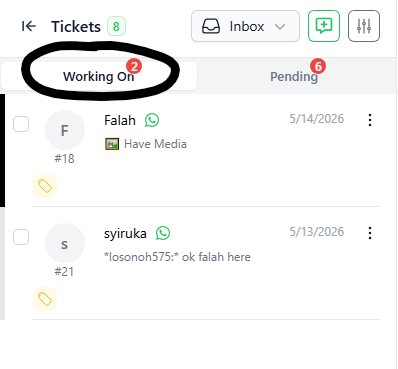
- Working On
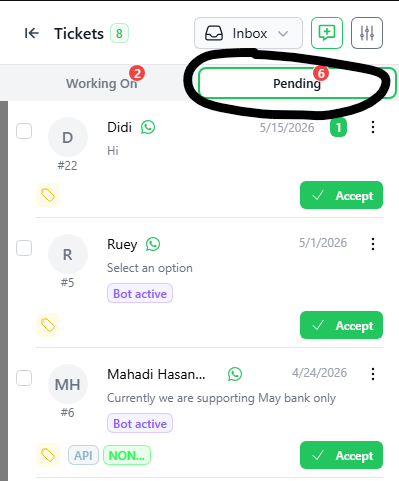
- Pending
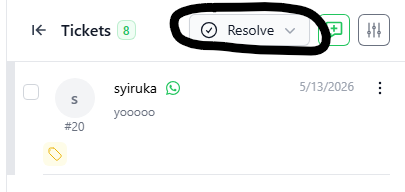
- Resolved
Inbox > Working On: Chats that a staff member is already talking to.
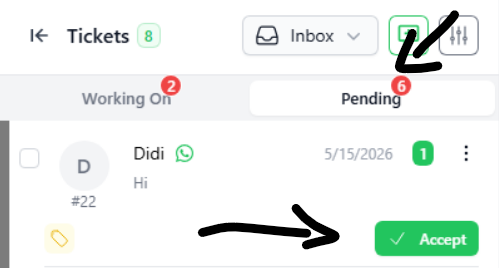
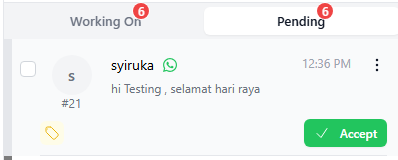
Inbox > Pending: New chats waiting for someone to answer.
Resolved: Chats that are finished and closed.
Searching for a Chat
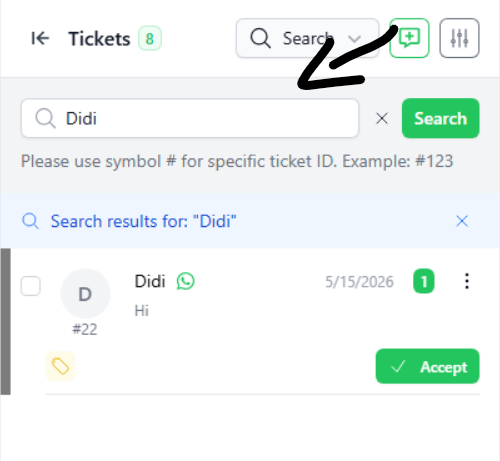
- Click the Search box at the top.
- Type a name or keyword and click the green Search button.
Type # and the number (like #22) to find a specific chat ID.
Answering a New Chat
All new chats start in the Pending tab.
- Click the Pending tab.
- Find the chat you want to answer.
- Click the green Accept button.
This moves the chat to the Working On tab and opens the chat screen.
Chatting with Customers
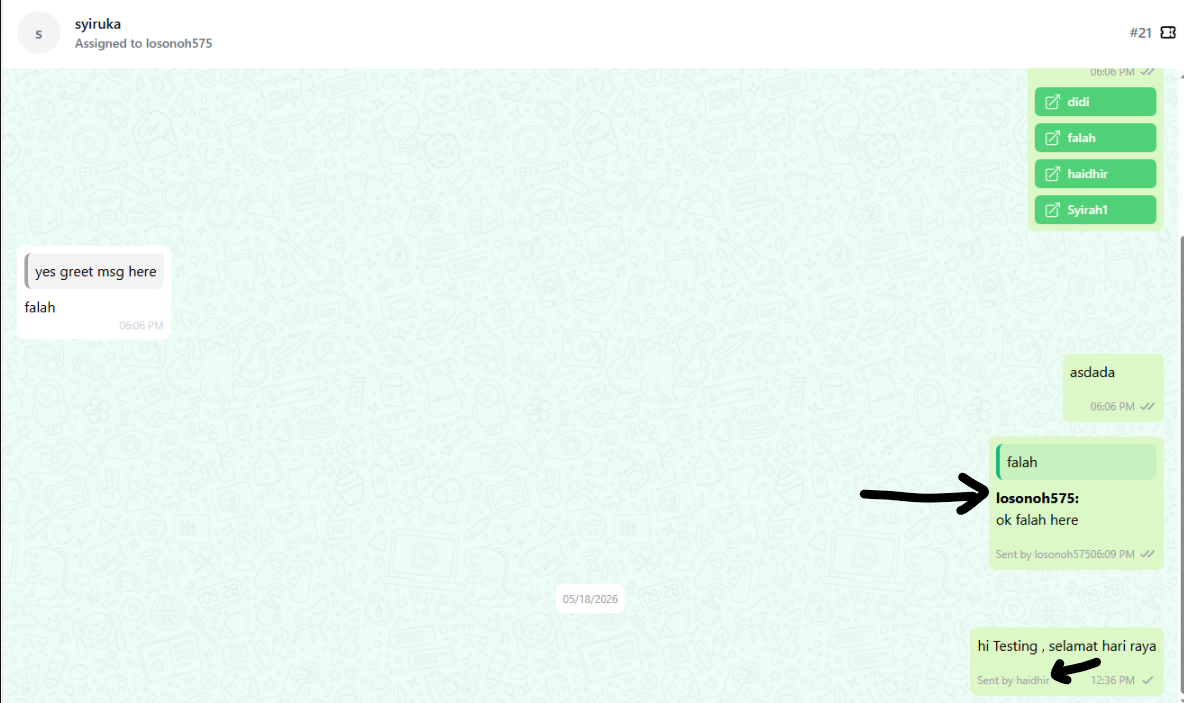
- Chat Screen
- Your Name (Sign)
- Team View
Type your messages directly in this area to communicate with the customer.
If turned on, the system automatically adds your name to your outgoing messages.
If other staff join the chat, their names will also show up next to their messages. Active staff names are shown in green boxes on the right.
Buttons at the Top-Left of Chat
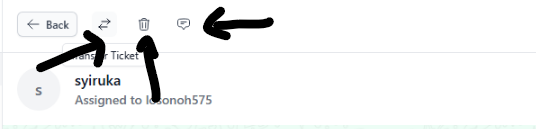
- Arrow (← Back): Go back to the main list.
- Arrows (-⇄): Transfer the chat to another staff member.
- Trash (🗑): Delete the chat.
- Bubble (💬): Mark the chat as unread.
How to Transfer a Chat
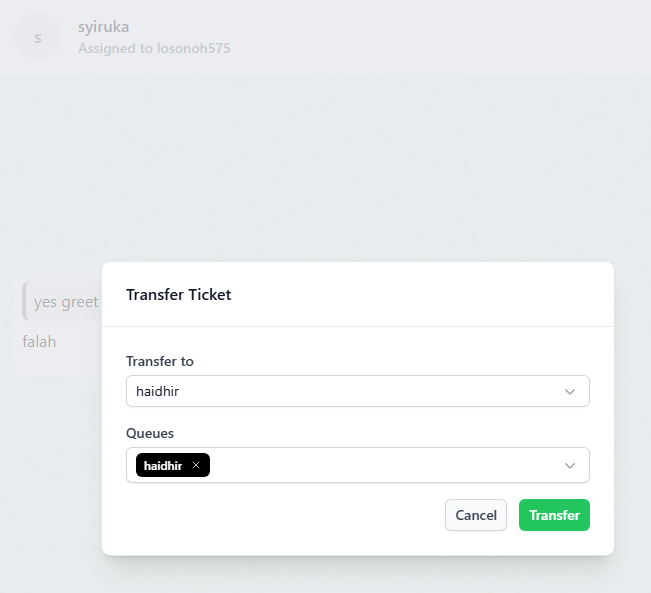
If you need another person or team to handle the chat:
- Click the Transfer (-⇄) button at the top-left.
- Type the staff name in Transfer to.
- Choose the team/department in Queues.
- Click the green Transfer button.
Giving a Chat Back
If you accepted a chat by mistake or need someone else to take over:
- Click the Return button at the top-right.
This puts the chat back in the Pending list for other available users to pick up.

Closing a Chat
When the conversation is finished:
- Click the green Resolve button at the top-right.
This closes the chat and moves it to the Resolved section.
